.png?width=300&height=65&name=GG%20Logo%20Main%20Navy%20(1).png)
Traveler tags can be created on a custom basis by administrators and assigned to specific user profiles that are in the platform. These tags are helpful to help better view types of travelers in map view, facilitate focused reporting through the reporting module, and alert an administrator of future booked travel for a tagged user profile.
How to create a traveler tag:
- Navigate to the Administration Area from map view
- Click on the link "Traveler Tags"
- Click "Add New Traveler Tag"
- In the field provided "Traveler Tag Name" enter a name you would like the tag to represent. For example, it could be VIP, or Board Member, or Contractor.
- Select a Traveler Icon Theme from the drop-down
- Click Save
A green confirmation pop up will appear to confirm the new traveler tag has been successfully created.

How to edit a traveler tag:
On the Traveler Tags page, a list of created tags is viewable. Click the tag you wish to update, then click Edit to apply your changes, and Save.
How to assign a traveler tag to a user profile:
- Navigate to the Administration Area from map view
- Click on "Users"
- In the search field, enter the name or email of the user profile you are looking to update
- Once found, click View
- Click the pencil icon to edit
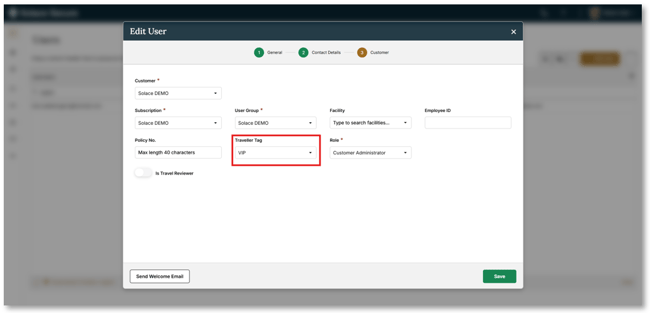
- Under the Traveler Tag drop-down, select the relevant tag
- Click Save
Traveler Tags in Map View:
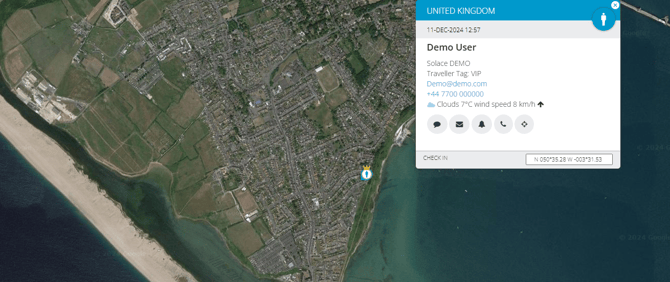
Once a user profile has been assigned a traveler tag, the user's profile in map view will display according to the theme selected for the tag. Example screenshot below.
How to set Manager Notifications using Traveler Tags:
Administrators can receive an email notification from the platform should an itinerary be processed which indicates a tagged user is traveling, or perhaps there are a number traveling on the same flight which is against company travel policy.
See the steps on creating manager notifications to understand how to set them up in general.
For a manager notification to be generated based on a traveler tag, the rule must be set up so that there is a number against the traveler tag setting. See example below:
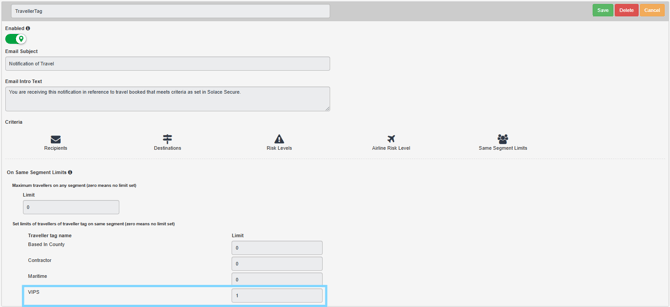
- If the limit is set to 1, a manager notification will be sent for every itinerary processed for a user profile which has that tag assigned.
- If the limit is set to more than 1, a manager notification will only be triggered should there be that number or more tagged travelers on the same flight.
The manager notification email will contain a link which directs to the platform to view the full details of the travelers and their booking.
Reporting Module: Building a report using Traveler Tags
Customer Administrators and Customer Analyst roles can filter reports in the reporting module according to Traveler Tags. This may help to understand frequent travel by VIPs or Contractors for example.
See the steps on creating or editing reports to understand how to set them up in general.
- To filter a report by travelers with a specific tag, in the Edit stage of a report on the select criteria page, select the specific traveler tag under the "Travelers" drop-down section, and click the green arrow to add the tag as a criteria to the report

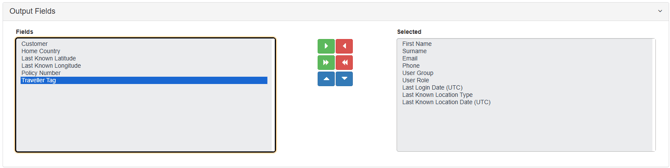
- To add a column in a report to see the traveler's tag details, in the Edit stage of a report on the select output fields page, select the Field Traveler Tag, and click the green arrow to add the column to the report output.