.png?width=300&height=65&name=GG%20Logo%20Main%20Navy%20(1).png)
Tags can be created on a custom basis by administrators and assigned to specific user profiles that are in the platform. These tags are helpful to filter and identify user types in map view, facilitate focused reporting through the reporting module, and alert an administrator of future booked travel for a tagged user profile.
How to create a tag:
- Navigate to the Admin Panel.
- Click "Tags."
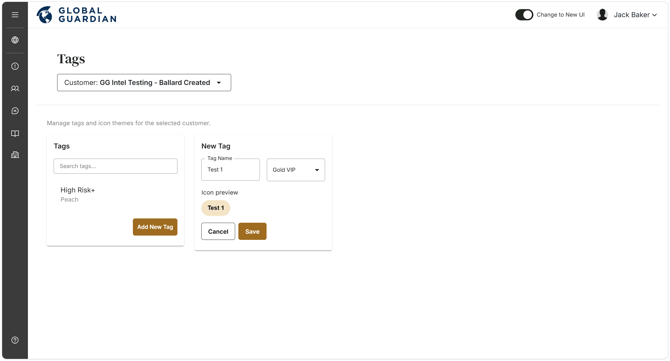
- Click "Add New Tag."
- In the field provided, "Tag Name," enter a name you would like the tag to represent. For example, it could be VIP, or Board Member, or Contractor.
- Select a theme for the tag from the drop-down on the right.
- Click "Save."
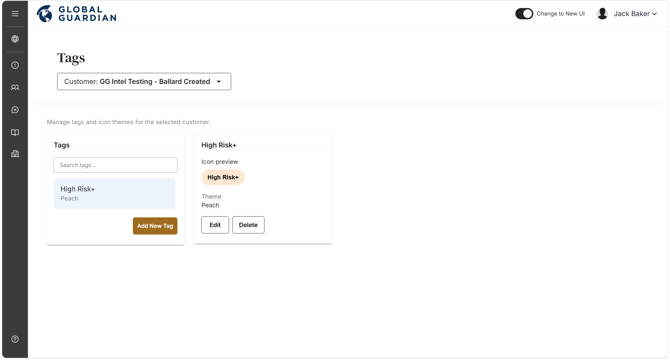
You can view all created tags on the Tags page. Clicking a specific tag will open a preview.
How to edit a tag:
On the Tags page, a list of created tags is viewable. Click the tag you wish to update, then click "Edit" to make your changes, and "Save" to apply them. Click "Delete" to remove a tag.
How to assign a tag to a user profile:
- Navigate to the Admin Panel.
- Click on "Users."
- In the search field, enter the name or email of the user profile you are looking to update and select the edit icon
 .
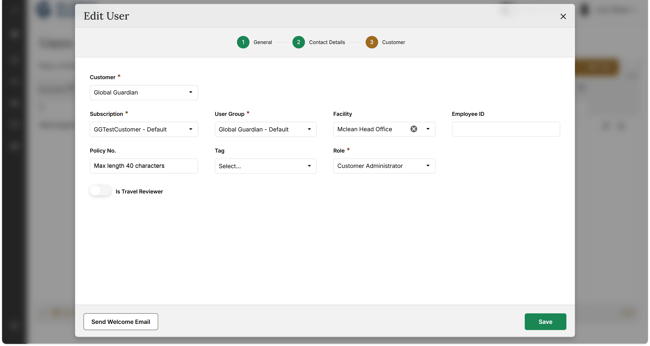
. - Under the Tag drop-down on the third page, select the relevant tag.
- Click "Save."
Tags in Map View:
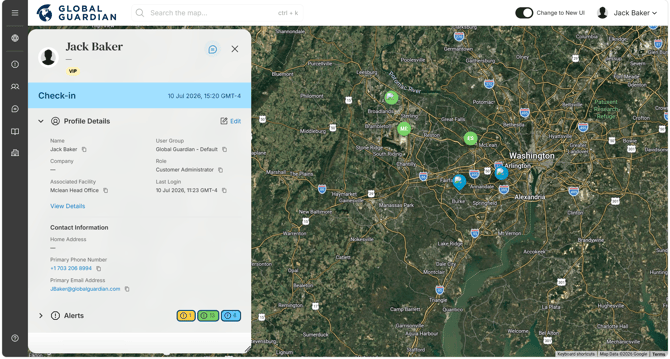
Once a tag has been assigned to a user profile, that user's icon in map view will display according to the theme selected for the tag.
How to set Manager Notifications using Tags:
Administrators can receive email notifications from the platform should an itinerary be processed which indicates a tagged user is traveling, or when multiple tagged users are traveling on the same flight which is against company travel policy.
See the steps on creating manager notifications to understand how to set them up.
For a manager notification to be generated based on a tag, a number must be set against the tag rule. See example below:
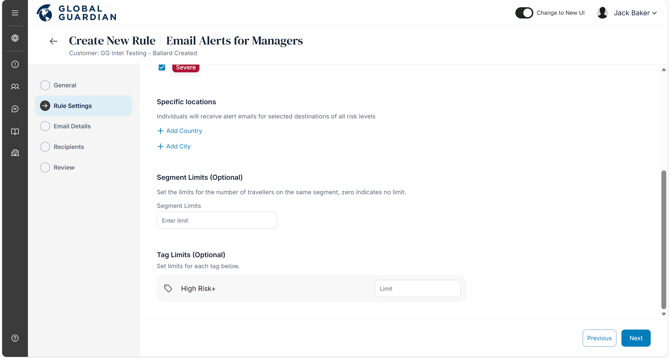
- If the limit is set to 1, a manager notification will be sent for every itinerary processed for a user profile which has that tag assigned.
- If the limit is set to more than 1, a manager notification will only be triggered should there be that number or more tagged travelers on the same flight.
The manager notification email will contain a link to the platform to view the full details of the travelers and their booking.
Reporting Module: Building a Report Using Tags
Customer Administrators and Customer Analyst roles can filter reports in the reporting module by Tags. This may help to understand frequent travel by VIPs or Contractors for example.
See the steps on creating or editing reports to understand how to set them up.
- To filter a report by travelers with a specific tag, go to the "Edit" stage of a report, open the select criteria page, select the specific traveler tag under the "Travelers" drop-down, and click the green arrow to add the tag as a filter criterion.

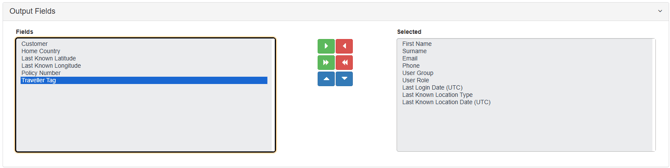
- To add a tag column in a report to see the traveler's tag details, go to the "Edit" stage of a report, open the select output fields page, select the Field Traveler Tag, and click the green arrow to add the column to the report output.