.png?width=300&height=65&name=GG%20Logo%20Main%20Navy%20(1).png)
You can easily manage your account by clicking your profile initials or photo in the top-right corner of the platform. From there, you can edit the following details by selecting the corresponding edit buttons:
- Name
- Email Address
- Mobile No.
- Home Country
- Policy Number
- Password
- Authenticator app
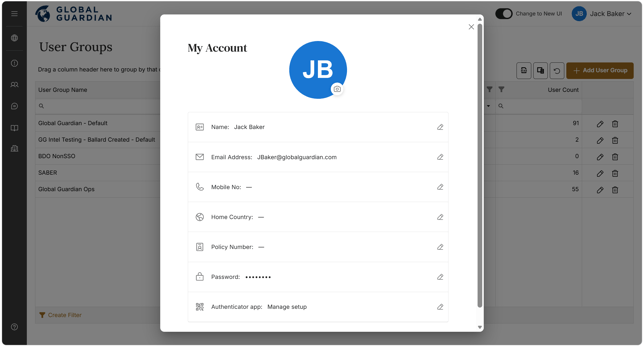
How to change my profile photo
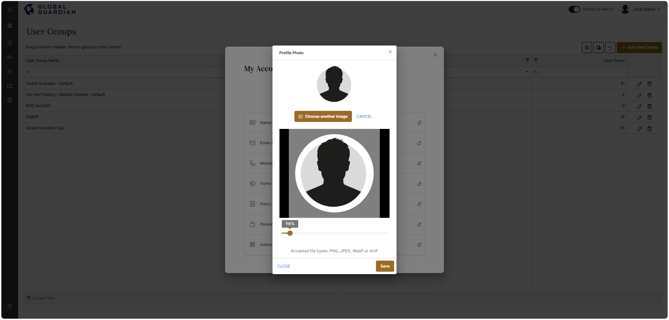
- Click the ‘Camera’ icon next to your current photo, then select "Upload New Image."
- Choose your new photo from your File Explorer (Accepted file types: PNG, JPEG, WebP or AVIF).
- Use the slider control to crop your new photo to fit the circular frame and click "Save" to apply your new profile photo.
How to change my password
- Click on the Edit button next to your password.
- Enter your current password.
- Enter a new password that meets the following security requirements:
- At least 10 characters in length
- Includes one uppercase character (e.g., ABC...etc)
- Includes one lowercase character (e.g., abc...etc)
- Includes one number (e.g., 123...etc)
- Includes one special character (e.g., !?&...etc)
- Confirm your new password matches the one entered above and click "Save" to update your password.
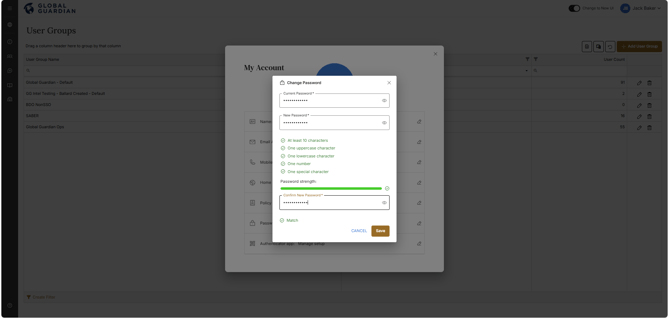
Note: If your current password is incorrect or new password does not match, your password cannot be updated.