.png?width=300&height=65&name=GG%20Logo%20Main%20Navy%20(1).png)
Due to inconsistent or incomplete data received through travel feeds, it is possible for multiple user profiles to be created for the same individual, leading to duplicate accounts that may cause confusion and fragmented travel or account data.
To resolve this, administrators have the ability to merge duplicate users into a single, correct user profile using the Merge Users feature in the administration area.
When to Use Merge Users
Use the Merge Users function when:
-
A single person appears multiple times in the system with different usernames or profiles.
-
Duplicate profiles were created as a result of inconsistent travel feed data.
-
You want to consolidate all data under one primary user account.
How to Merge Users
Follow the steps below to merge duplicate user profiles:
-
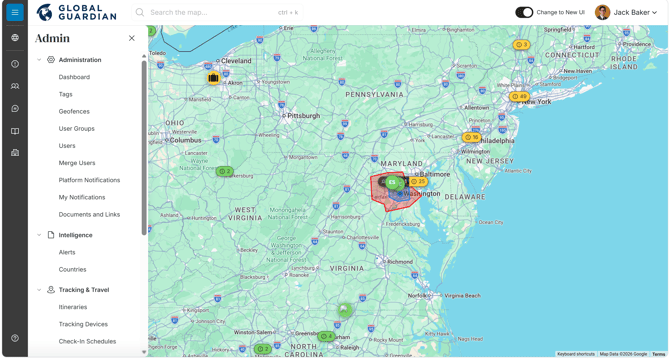
Navigate to the Administration Panel on the left-hand menu.
-
Click on Merge Users.
-
In the left-hand column, search for and select the duplicate user that should be removed.
-
In the right-hand column, select the real (primary) username that should be retained.
-
Click Merge to complete the process.
Important Notes
-
The user selected on the right-hand side will remain as the primary account.
-
The duplicate user selected on the left-hand side will be merged into the primary account.
-
Ensure you have selected the correct primary user before clicking Merge, as this action may not be reversible.
Result
Once the merge is complete, all applicable data will be consolidated under the primary user profile, helping to maintain accurate records and prevent future confusion caused by duplicate accounts.