.png?width=300&height=65&name=GG%20Logo%20Main%20Navy%20(1).png)
Some administrators may have standard messages they need to send regularly, or there may be specific messaging required for particular incidents or events. Administrators can create and save these messages under the Pre-Set section so they are ready to send when needed.
How to Create and Save a Message
Step 1:
- Follow the same steps 1 and 2 for creating a message from blank. Refer to this article if you wish to revisit how to do this: Mass Messaging
Step 2:
- When composing the message, click "Save as Preset" in the top-right corner. A green confirmation will appear if saved successfully.
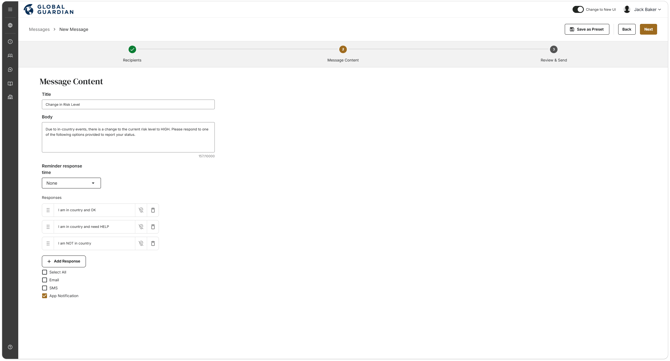
- You can close the window if you do not wish to send the message template at this time.
How to Access and Send Saved Messages
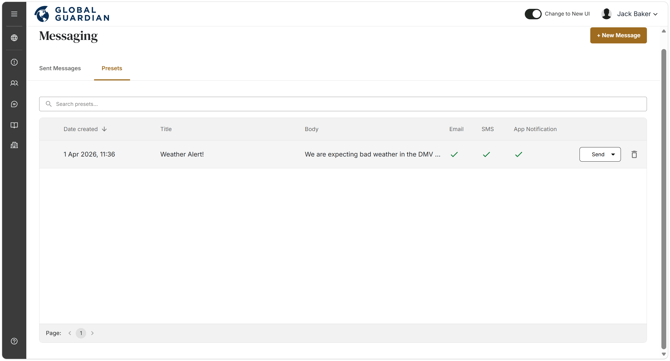
- Click the "Presets" tab in messaging and all saved messages will appear.
- Click "Send" if the message template is ready to send as is.
- If edits are required beforehand, click the drop-down and select "Customize and Send." You can then add or remove recipients, edit the message content or responses, and send.