.png?width=300&height=65&name=GG%20Logo%20Main%20Navy%20(1).png)
How to enable Live Location on your mobile app (iOS & Android)
1. In HALO app menu, tap "Live Location."
2. Toggle Live Location to enable.
3. In the pop-up select "Change to Always Allow."
Your Live Location will now be enabled from the mobile app. Ensure you are on the latest version of the app from your respective app store.
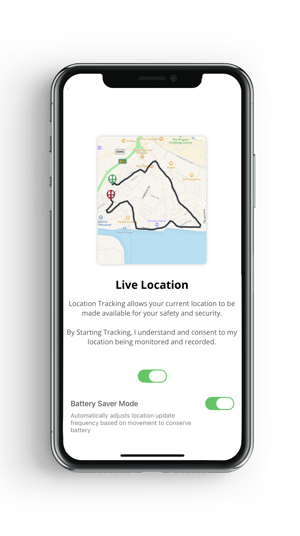 Battery Saver Mode (iOS Only)
A Battery Saver Mode toggle is now available within Live Location settings.
- When enabled, the app will automatically adjust how frequently your location updates
- Update frequency is based on your movement and activity:
- More frequent updates when you’re moving
- Reduced updates when you’re stationary
- This helps conserve battery life without fully disabling Live Location.
You can turn Battery Saver Mode on or off at any time, depending on whether you want to prioritize battery efficiency or real-time tracking accuracy.
Best Practices:
- Keep the app open — do not force close it.
- Do not restart the device.
- Do not enter low power mode.
If any of these actions occur, the app will automatically default to a reduced tracking interval ("fallback" mode) until the app is re-opened.
For Apple device users, iOS may periodically ask you to reconfirm that "Always Allow" location permission is still enabled. This is a standard privacy protection measure and will occur at random intervals. Continue to reconfirm "Always Allow" if prompted.
Note: If the "Always Allow" permission is not enabled, then the app is unable to use the fallback tracking as highlighted above.
Opening the app will provide a shortcut to Settings "Open Settings" to then change the "Location" permission. Re-open the app after enabling the setting as a best practice.
How to See Someone's Enabled Live Location — Mobile App
-
Tap "Menu" in the main menu grid.
-
Tap "Live Location."
-
Zoom into the map to see users' locations in more detail.
How to See Someone's Enabled Live Location — Web Platform
- In Map Filter settings, enable "Live Location View." The map will automatically update to show live location users.
- Alternatively, click the "People" tab on the left-hand menu to see active sessions (within the last 30 minutes) or inactive sessions.
-
To view another user's location you must have the correct administrator permissions in the platform.