.png?width=300&height=65&name=GG%20Logo%20Main%20Navy%20(1).png)
Facility Contact alert email rules allow administrators to automatically notify designated facility contacts when incidents occur near their facilities. Rules can be configured for all facilities or specific locations, with notifications based on proximity and risk level.
This helps ensure the appropriate people are informed quickly when events may impact their facilities.
Create a Facility Contact Alert Email Rule
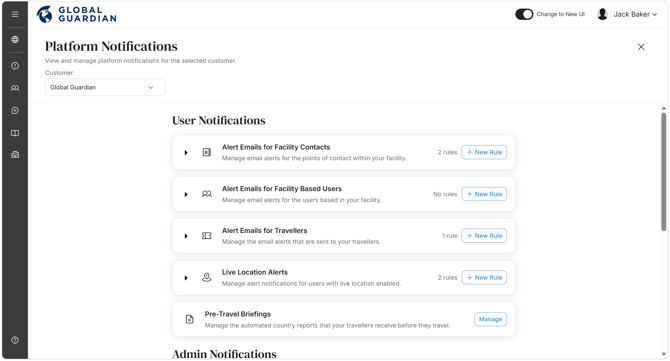
- From the Administrator Panel, open Platform Notifications.
- Under "Alert Emails for Facility Contacts," click "+ New Rule."
- Enter a Rule Name and, if required, add a Description.
- Click "Next."
Configure the Rule Settings
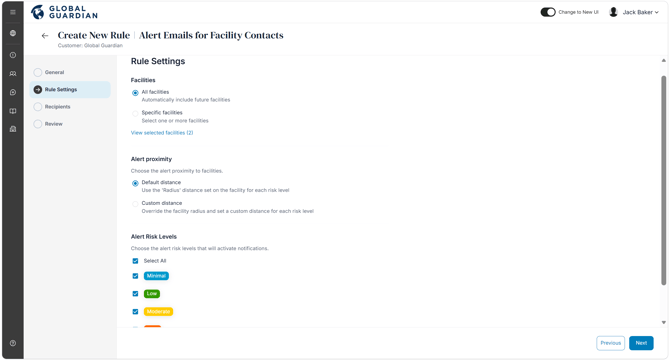
Select Facilities: Choose whether the rule applies to:
- All Facilities, or
- Specific Facilities.
Configure Alert Proximity: Choose how the notification radius is determined:
- Default – Uses the risk radius configured for each individual facility.
- Custom – Overrides the facility's configured radius and applies a notification radius based on the selected alert risk level instead.
Select Risk Levels: Choose which alert risk levels should trigger email notifications, and the radius to apply if using custom alert proximity settings.
Click "Next."
Assign Notification Recipients
Choose who should receive the alert emails:
- All Facility Contacts.
- Specific people or users within the platform.
Click "Next."
Review and Save
- Review the rule settings to ensure they are correct.
- Click "Save" to create the notification rule.
Use the Default proximity option when individual facilities have tailored notification radii configured. Choose the Custom option when you want to apply a consistent notification radius across multiple facilities based on alert risk level, regardless of each facility's individual settings.