.png?width=300&height=65&name=GG%20Logo%20Main%20Navy%20(1).png)
- Open the Admin Panel.
- Click "Users."
- Click the Ellipses
 button on the right-hand side, and select the option for "+ Import Users."
 - Create an import file matching the import template displayed. The template can be downloaded directly.
- The file must be in CSV format.
- Firstname and Lastname must be in separate columns.
- The Email field creates a unique user profile and cannot be duplicated across multiple users.
- Mobile No. must be entered in the format shown, including the international dialing code.
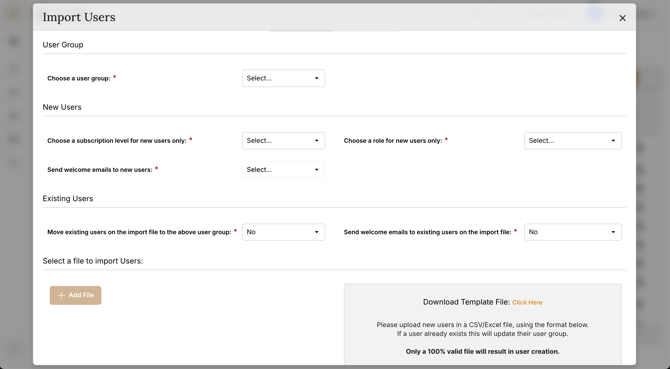
- Complete the following drop-down selections:
- Select the user group the users should be created in.
- Choose a role for new users. It is recommended to select Operative for bulk user imports (see the User Roles page for more information on user permissions).
- Choose a subscription level for new users. There is typically only one option here.
- Select "Yes" or "No" whether to send a welcome email to new users.
- Select whether to move existing users on the import file to this user group. If a user already exists under the customer in the system and they are on this import file, you can choose to move them to this user group as well.
- Select "Yes" or "No" whether to send a welcome email to existing users. It is important to note that if you select "Yes," it will reset the user's password, so they will have to go through the registration process again.
- Then click "+ Add File" to import the travel bookings file.
- The progress line will show:
- Green: Full import was successful.
- Red: The import failed and needs to be reviewed.
Failed Imports:
- There may be an obvious error in the import file. The system may identify which cell or field is reporting the error.
- If you the cause of the failed import is unclear, contact the Global Guardian support team and send them the import file securely. We must receive the original file in order to diagnose the problem with the specific import.
Pro Tips:
- Importing a Mobile No correctly into the system requires an international dialing code. To ensure the code is included, format the cell in Excel as Text, or include single quotation mark before the plus (e.g., '+17035669643).