.png?width=300&height=65&name=GG%20Logo%20Main%20Navy%20(1).png)
Whenever an alert is raised in the system, Assets Nearby identifies the people and facilities that may be impacted by the event. This page provides a detailed view of all assets associated with the alert, making it a critical part of the platform for understanding who or what may be affected.
Accessing Assets Nearby
You can access the Assets Nearby page in several ways:
- From Map View: Click the "Assets Nearby" link on an alert.
- From the Alerts Table: Click the link in the Assets Nearby column.
- From an Admin Email Alert: If an alert has impacted your assets, the admin notification email includes a direct link to the relevant Assets Nearby page.
Reviewing Impacted Assets
The Assets Nearby page provides the full details of the alert, along with information about the people and facilities that may be impacted.
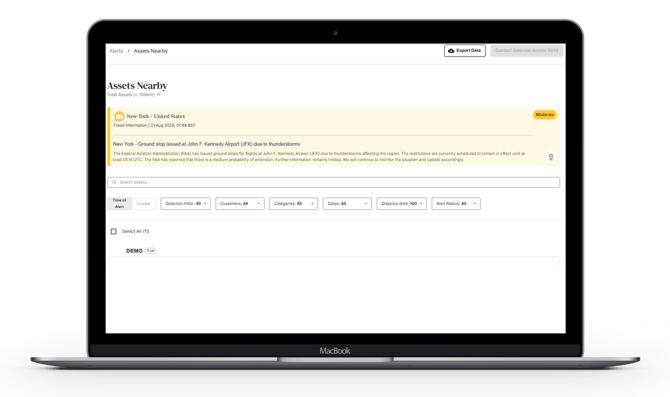
You can toggle between assets that were impacted when the alert was triggered and those that are currently affected. This provides administrators with visibility into assets involved throughout the lifecycle of an alert, from the initial event through to the ongoing situation.
Asset Categories
Results can be filtered by asset category, including:
- User Locations: For example, Check-Ins and Live Locations
- Facility-Based Users
- Facility Contacts
- Remote Workers
- Itinerary Items: Including Scheduled and In Country itineraries
- Hotel Bookings
These filters allow administrators to prioritize the assets most relevant to the event.
Additional Filters
You can further refine results using additional filters. For example, when reviewing upcoming Scheduled Itineraries, you can filter travelers arriving within the next 24, 48, or 72 hours.
Assets can also be filtered by their distance from the alert location using predefined radius options of 5 km, 10 km, 25 km, or 100 km, or by entering a custom radius of less than 100 km.
Exporting Asset Information
You can export information about the assets impacted by an event.
- Select all assets or choose the specific assets you want to include.
- Click "Export Data" in the top-right corner.
- The selected asset information will be exported for further use or analysis.
Contacting Selected Assets
If you have a mass messaging subscription, you can contact impacted users or facilities directly from the Assets Nearby page.
- Select all assets or choose the specific assets you want to contact.
- Click "Contact Selected Assets."
- The mass messaging process will open with your selected assets automatically pre-selected as recipients.
- Follow the three-step process to compose and send your message.
For more information, see Mass Messaging.