
The My Chats feature, located in the Messages panel in map view, enables customer administrators to communicate directly with their users through the platform’s web interface and phone app. It provides a dedicated messaging channel designed to increase app usage and engagement while supporting customer-specific communication and duty-of-care requirements.
For customers operating in complex or higher-risk environments, My Chats also provides an alternative to traditional messaging applications, which may become restricted or unavailable in certain locations or circumstances.
Customer administrators can communicate with users, create group conversations, and share relevant information as situations develop.
Key Features
- Authorised conversations: Customer administrators can start chats with users they have permission to access. Standard Users cannot initiate customer conversations as they do not have administrator permissions.
- Direct and group chats: Communicate one-to-one with an individual or with multiple users in a group chat.
- Manage group members: Add or remove users from group chats as required.
- Name group chats: Give group conversations clear names to make them easier to identify and organise.
- Keyword search: Quickly find existing chats and relevant messages.
- Star preferred chats: Star important one-to-one or group conversations for quick access
How to Access My Chats
My Chats is available through both the web platform and the phone app.
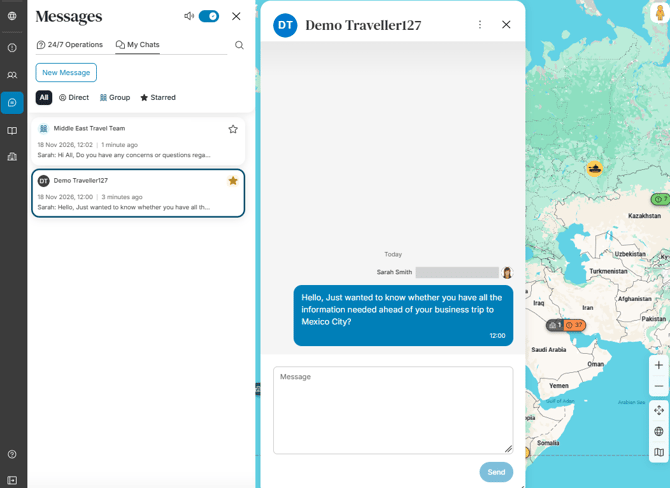
On the web:
- Log in to the web platform.
- Open the Messages panel from the left-hand menu.
- Select New Messages to start a new conversation.
- To continue an existing conversation, click on a conversation or use the keyword search to find the relevant chat and open it.
On the phone app:
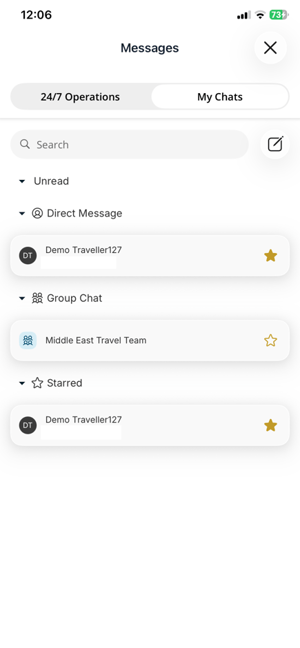
- Open the mobile app.
- Tap Messages, then select the My Chats tab.
- To start a new conversation, tap the new chat icon.
- To continue an existing conversation, tap on a conversation or use the keyword search to find the relevant chat and open it.
Important Security and Access Information
The My Chats feature provides secure message transmission between users but is not currently end-to-end encrypted. Messages remain accessible at the database level to authorised members of the development team for appropriate technical and operational purposes. The Operations team do not have access to customer messages through the platform. Customer administrators can only view group chats they are members of.
When to Use My Chats
|
Use case |
Example |
|
Duty-of-care check-ins |
A customer administrator messages employees traveling or working remotely to check that they are safe following an incident or change in circumstances. |
|
Incident communications |
An administrator creates a group chat to coordinate communications with employees affected by a specific incident or event. |
|
Group coordination |
Dedicated chats are created for teams, projects, trips, or groups of travelers to share relevant information and updates. |
|
One-to-one support |
An administrator privately messages an individual user to provide support or discuss a specific situation. |
|
Pre-trip communication |
Administrators communicate with travelers before departure, sharing guidance, reminders, and important information. |
|
Alternative to traditional messaging apps |
Customers keep business, duty-of-care, and traveler communications within one platform rather than relying solely on consumer messaging applications that may be restricted or unavailable. |