.png?width=300&height=65&name=GG%20Logo%20Main%20Navy%20(1).png)
- In the Admin Panel, click on "Itineraries."
- Search for an itinerary you would like to duplicate and update.
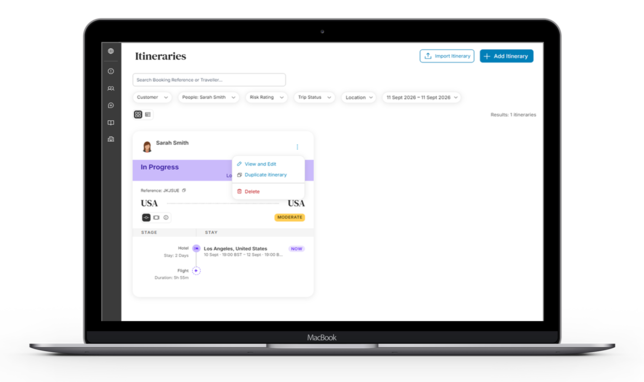
- Once found, click the three dots located on the travel card and click "Duplicate itinerary."
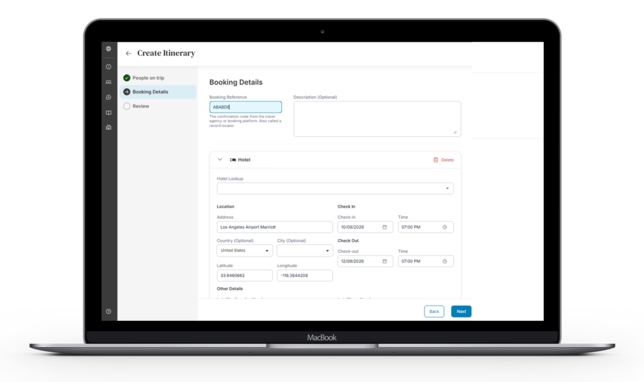
- A duplicate of the specific itinerary will open in an edit view. From here you will need to enter a new booking reference for this duplicated trip. You can also update the travel date fields as required or edit travel segments by adding or removing any items which have changed.
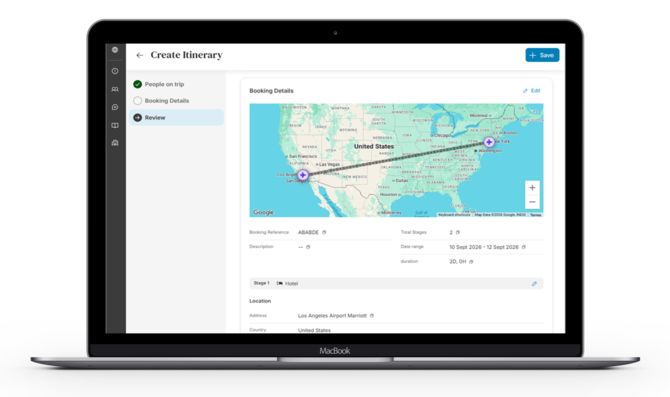
- Click "Next" to review the duplicated itinerary and then "+Save."