.png?width=300&height=65&name=GG%20Logo%20Main%20Navy%20(1).png)
To combine itineraries, the named travelers on the booking must exist on all itineraries you want to connect. For example, you cannot combine a flight with traveler name A to a hotel with traveler name B. Both named travelers must be included on the original flight and hotel in order to combine them.
Combine Itineraries
- From the Administrator Panel, open "Itineraries."
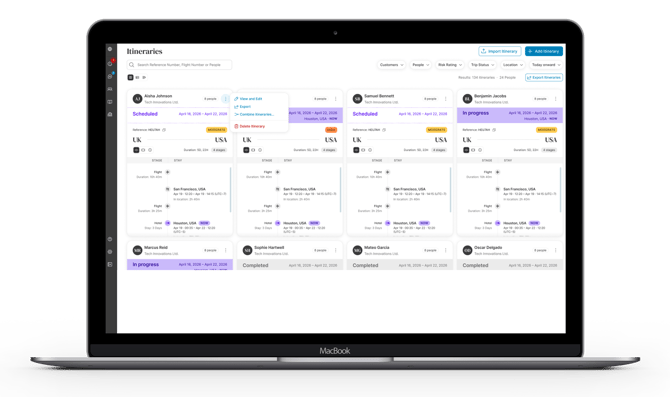
- Click the three dots of an itinerary, whether in card or table view, and select "Combine Itineraries."
- The Combine Itineraries pop-up will appear. All associated itineraries will be displayed according to the people associated with the travel.
- Select the itineraries you would like to combine and click "Combine Itineraries."
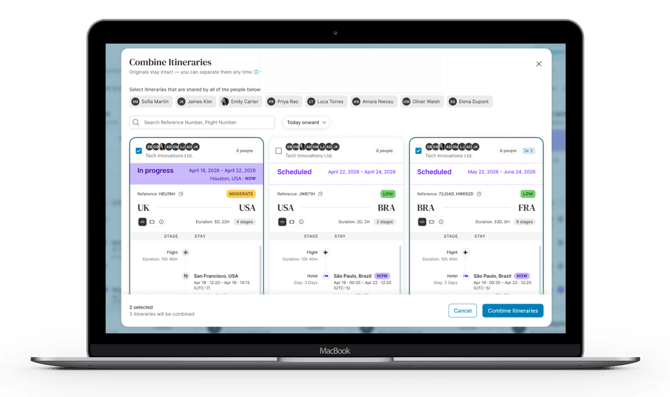
Combined itineraries will have an icon and display every associated or original booking reference.
Separate combined itineraries
You can still separate the itineraries after they are combined. Click the merged icon and select "Separate all itineraries."
Adding additional travelers
If all itineraries have been entered manually, you can add additional travelers after the itineraries have been combined.
If some of the itineraries have been received into the platform via an automated travel feed integration, the ability to add additional travelers to a combined itinerary is prevented.