.png?width=300&height=65&name=GG%20Logo%20Main%20Navy%20(1).png)
The Documents and Links section provides a central resource area where customers can share important documents and useful web links with their users. Access can be controlled by assigning visibility to specific user roles, ensuring that only the appropriate users can view the content.
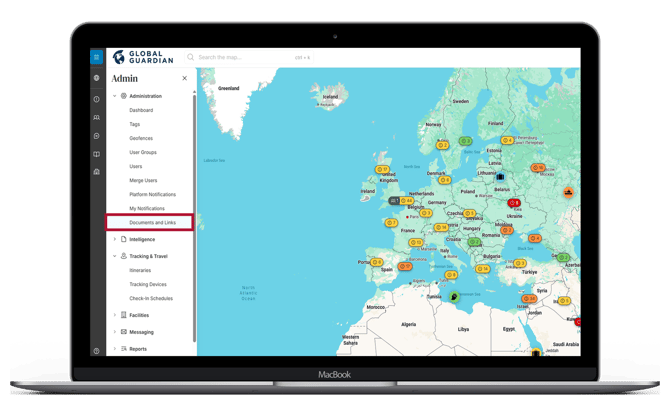
Accessing Documents and Links
To access the Documents and Links area:
- Open the Administration Panel.
- Select "Documents and Links" from the left-hand menu.
User Role Permissions
When sharing documents or links, you can control who has access by assigning visibility to one or more of the following user roles:
- Customer Admins
- Customer Analysts
- Regional Admins
- User Group Admins
- Standard Users
Only users with the selected roles will be able to view the shared resource.
Sharing a Document
To upload and share a document:
- Drag and drop the file into the upload area.
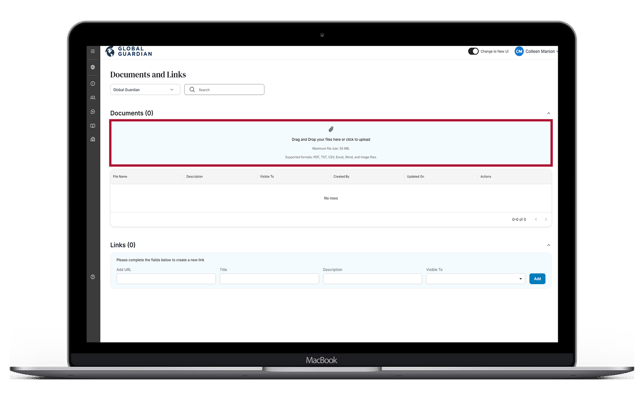
- The system will automatically scan the file before uploading.
- Once the upload is complete, select "Edit Row"
 .
. - Update the document description if required.
- Choose which user roles should be able to view the document.
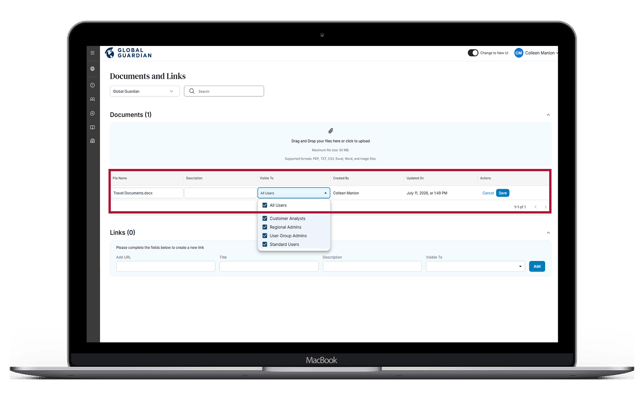
- Save your changes.
Sharing a Link
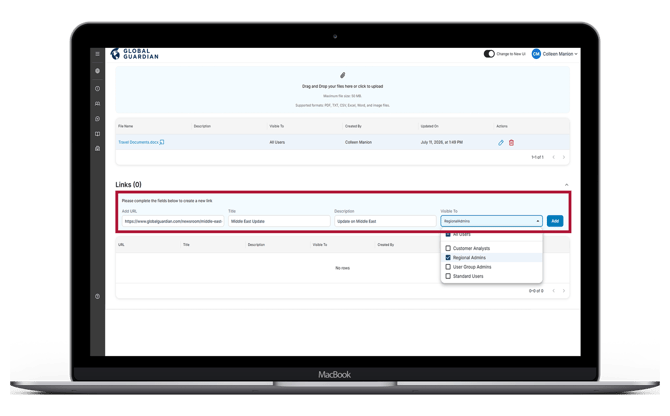
To add a web link:
- Copy and paste the URL into the "Add" field.
- Enter a title that will be displayed to users.
- Provide a description of the link.
- Select which user roles should have access.
- Click "Add" to publish the link.
Editing or Deleting
After a document or link has been shared, you can manage it at any time by:
- Editing the title or description.
- Changing which user roles can access it.
- Deleting the document or link if it is no longer required.
Changes take effect immediately for users with the relevant permissions.
Note: The mobile app also includes a Documents section, accessible from the side menu. To make a document available in both the web platform and the mobile app, it must be uploaded separately in each platform, as uploads are not automatically synchronized. At present, the mobile app supports document sharing only and does not support shared links. Link sharing on mobile is planned for a future release.