.png?width=300&height=65&name=GG%20Logo%20Main%20Navy%20(1).png)
Desktop Home Screen
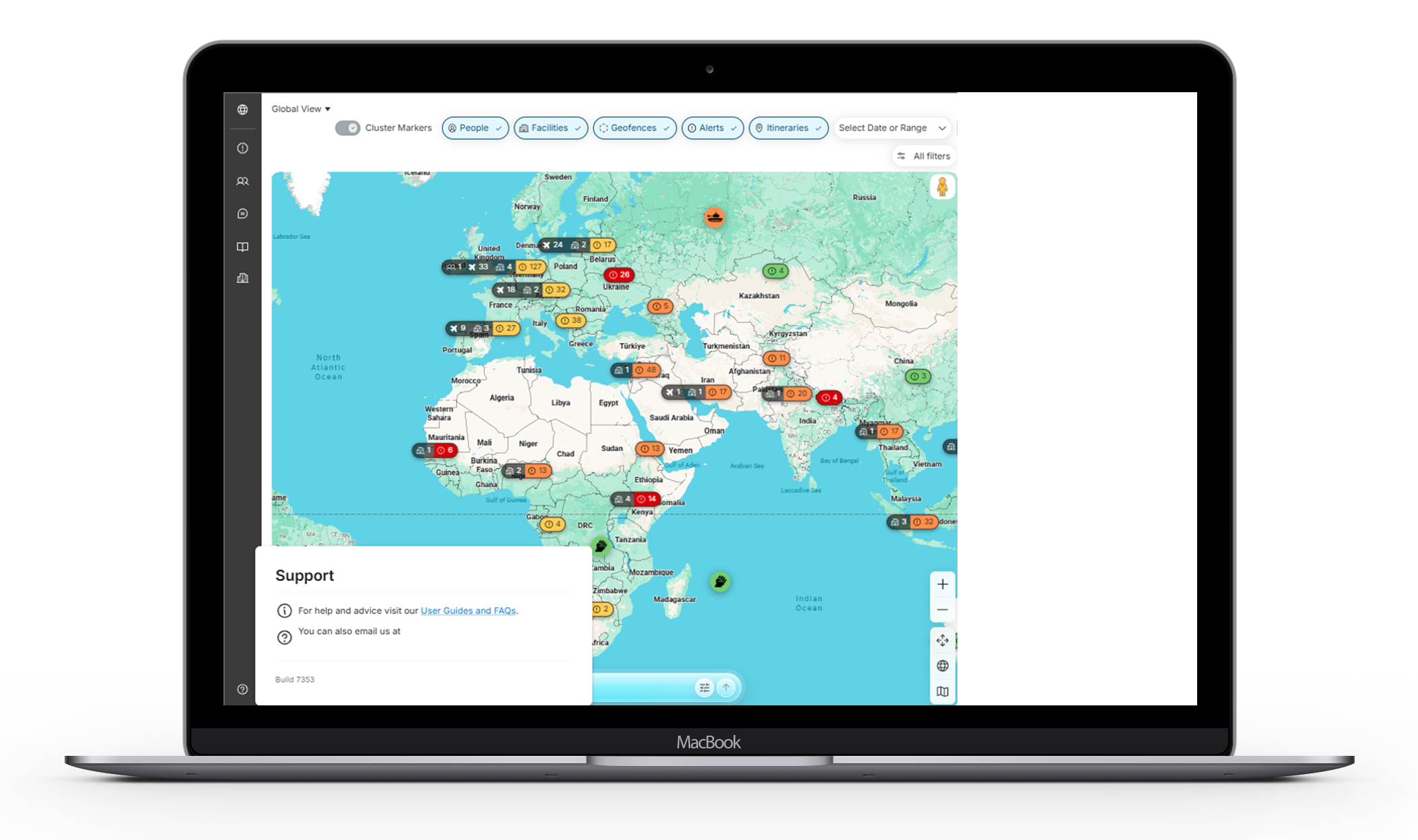
After logging in, the main view displays a world map with intelligence and your own travel alerts marked at their respective locations.
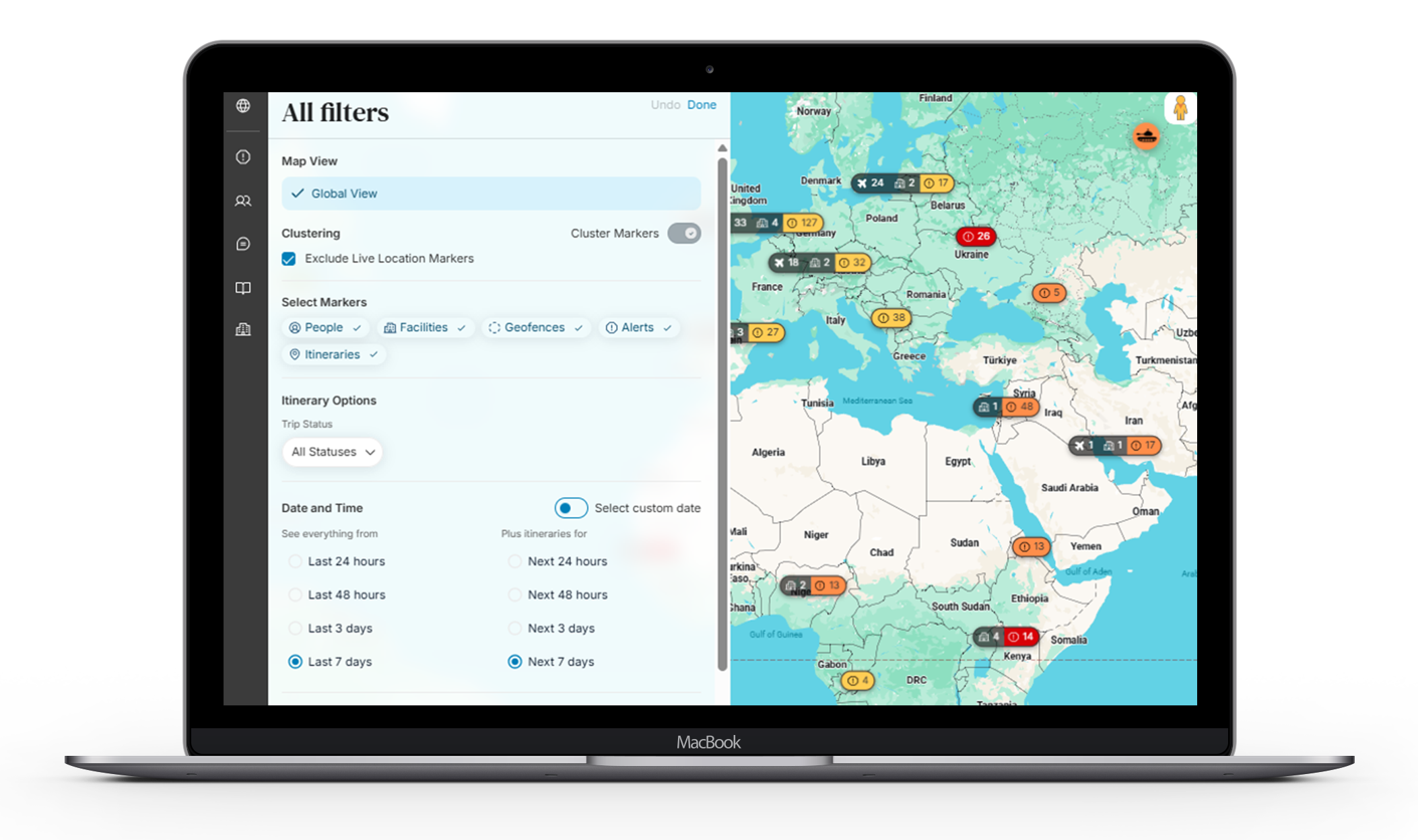
Map Filters
Choose the relevant map filters to display them on your map view. You can customize the alerts shown by adjusting the risk level, category, and country. Enable marker clustering for a more organized view.
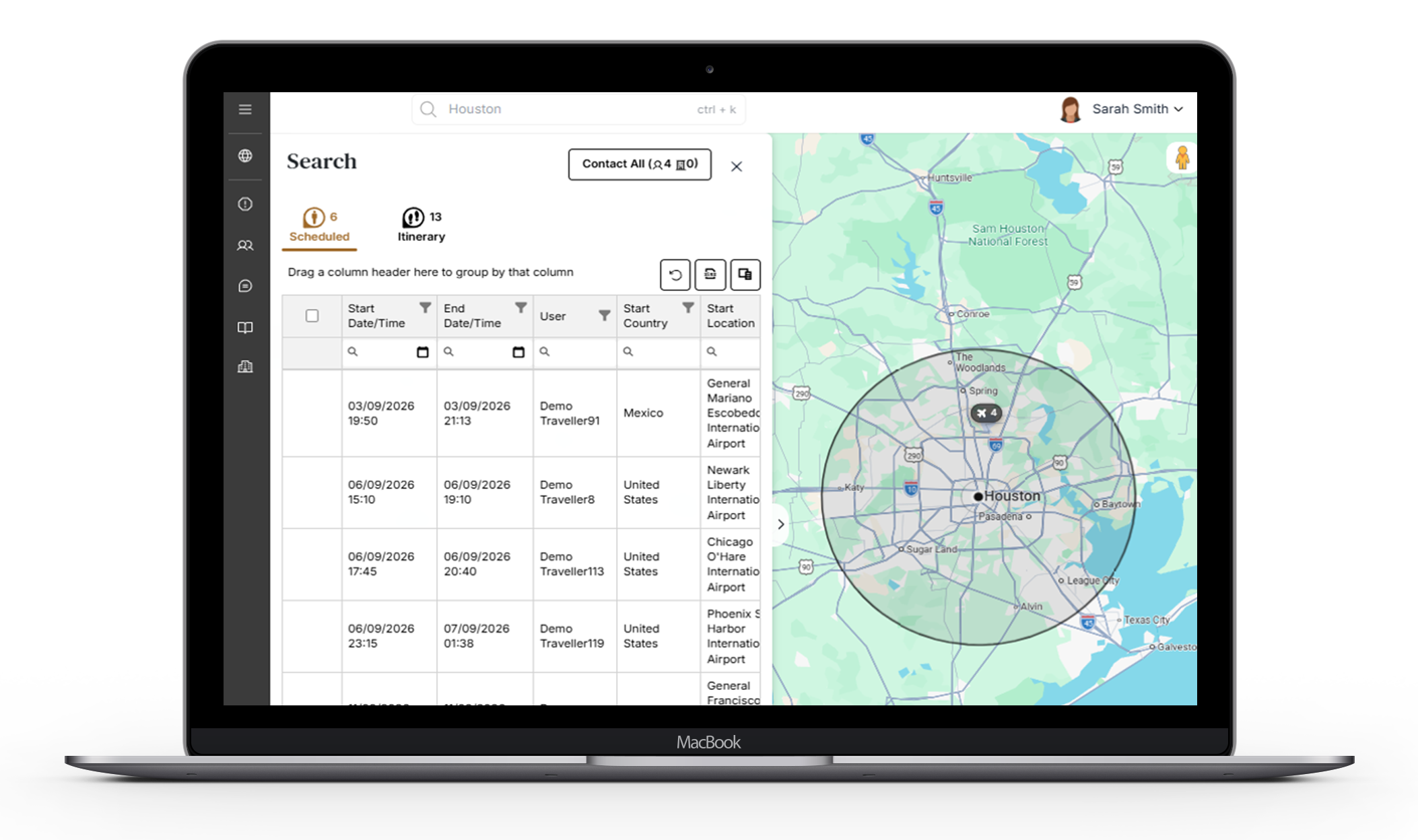
Search
Click the magnifying glass in the top-left corner to search for a country, or enter a location or user's name. A side panel will appear showing the selected country's active travel itineraries, user's app-tracking locations, intelligence alerts, or facilities within the search area.
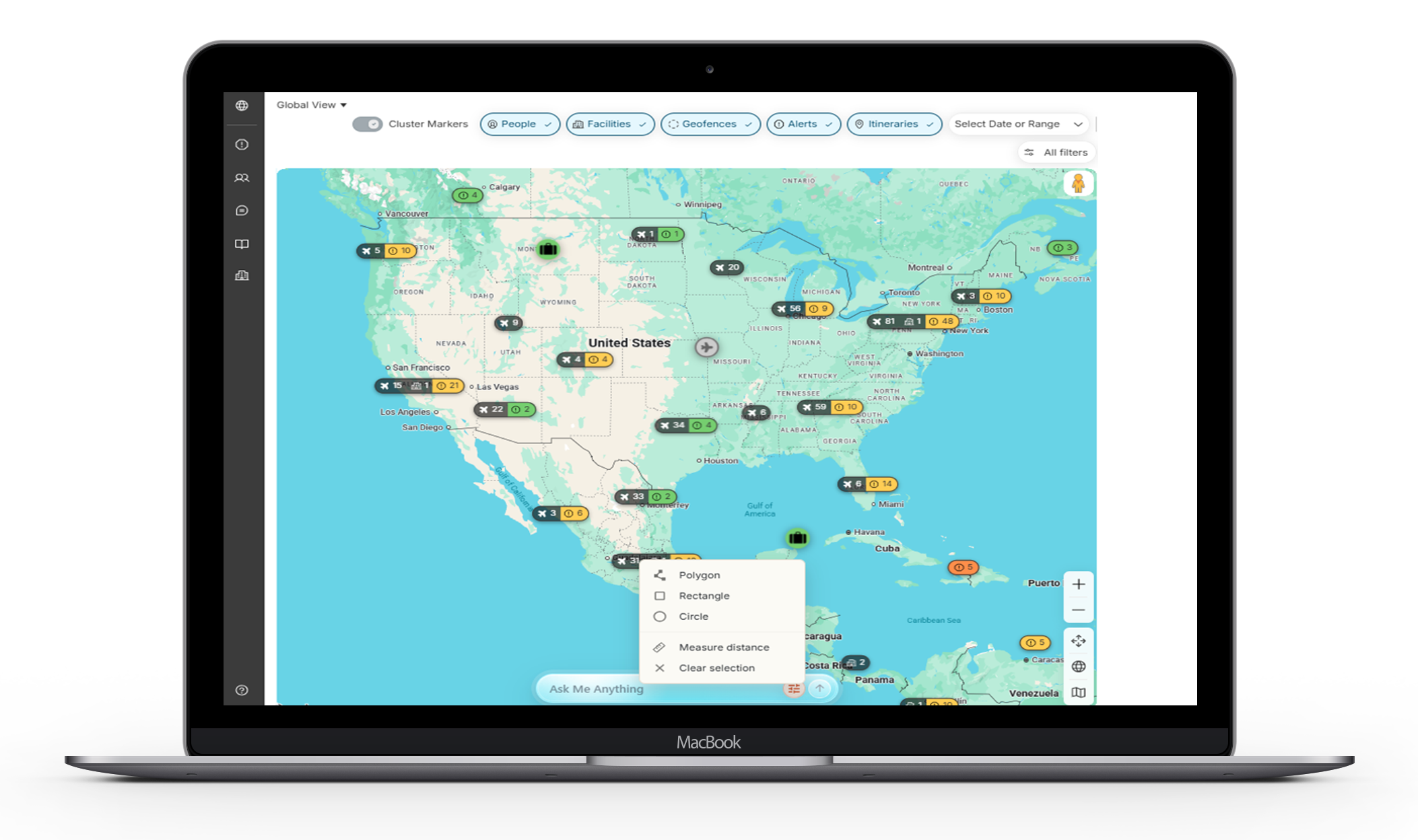
Drawing Tools
The Drawing Tools are located at the bottom of the map and allow you to create custom shapes around intelligence alerts and other map markers. Any markers within the drawn area will automatically appear in a dedicated side panel for easier review and analysis.
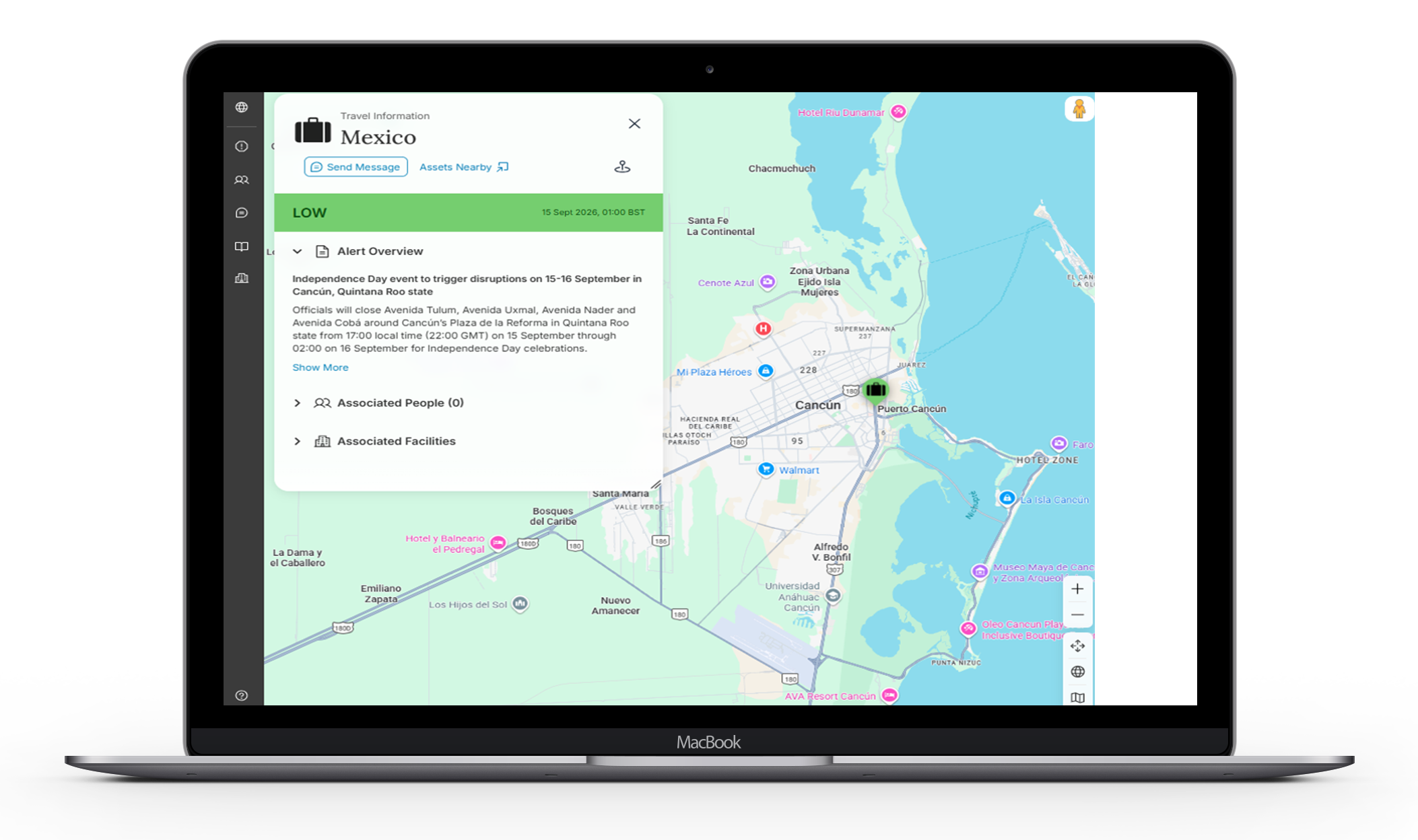
Alerts
The map view will show different alert icons for the latest intelligence alerts, posted at their respective locations. Click on an alert to view the description and advice.
When alerts occur in the same location, depending on the map zoom level, they may cluster. Click on the cluster to see the breakdown of each alert.
Help and Support
Click the question mark in the bottom left-hand corner to access User Guides and FAQs, and see the contact email address for further support.
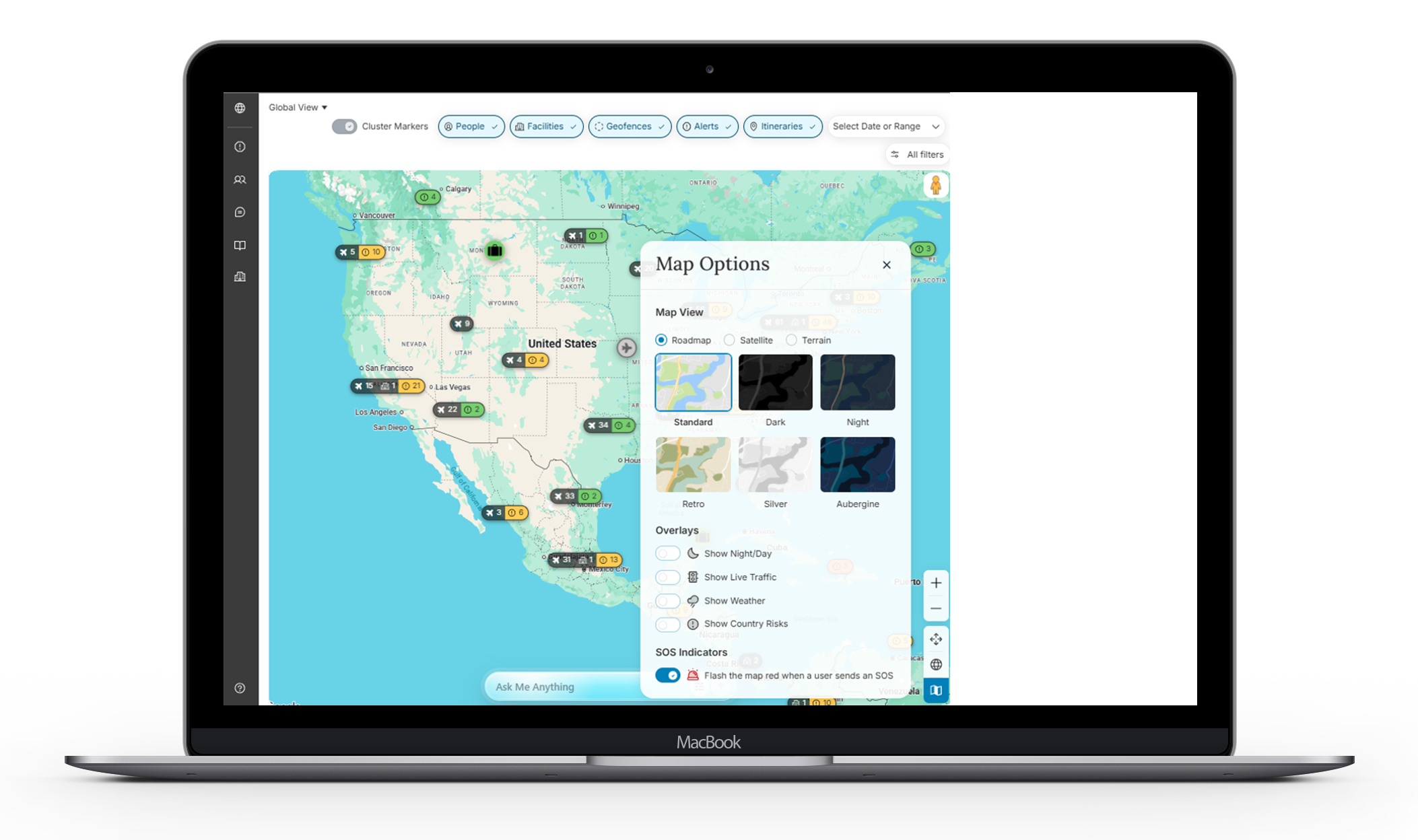
Bottom
Navigate to the bottom-right corner to customize your map preferences. From here, you can enable features such as a day/night overlay and a live traffic feed. You can also choose to display an overall risk overlay or filter it by specific categories. If you prefer no overlays, toggle the feature off.
Left Tab Menus
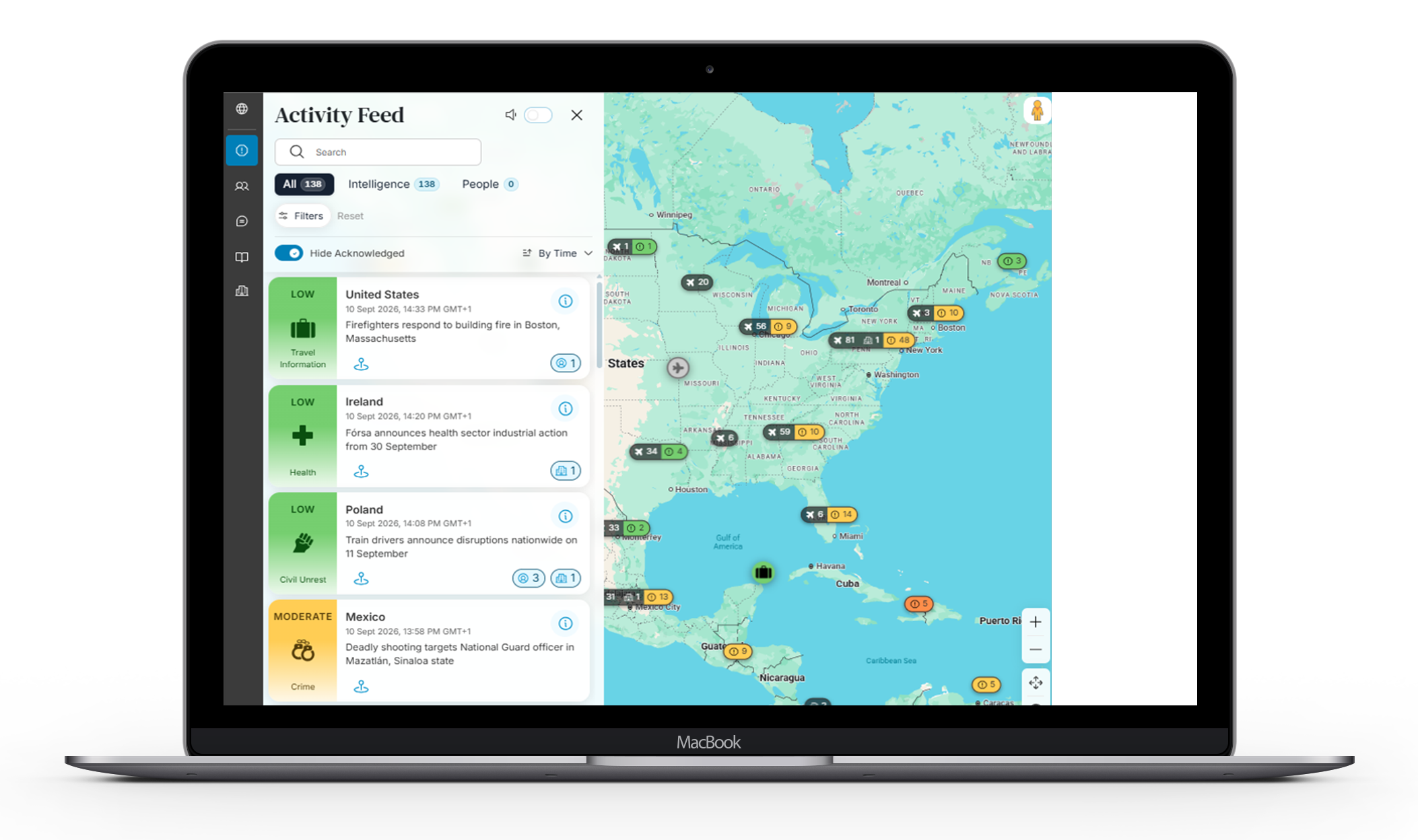
Activity Feed
Intelligence alerts and check-in activity are displayed in chronological order, with the most recent alerts appearing first. Use the search box to filter alerts by keywords found in the alert's title, description, or associated location. Select the "Intelligence" tab to view only intelligence alerts, or the "People" tab to see your recent check-in activity. You can also click the location icon on any alert to zoom the map to that alert's location and view its details.
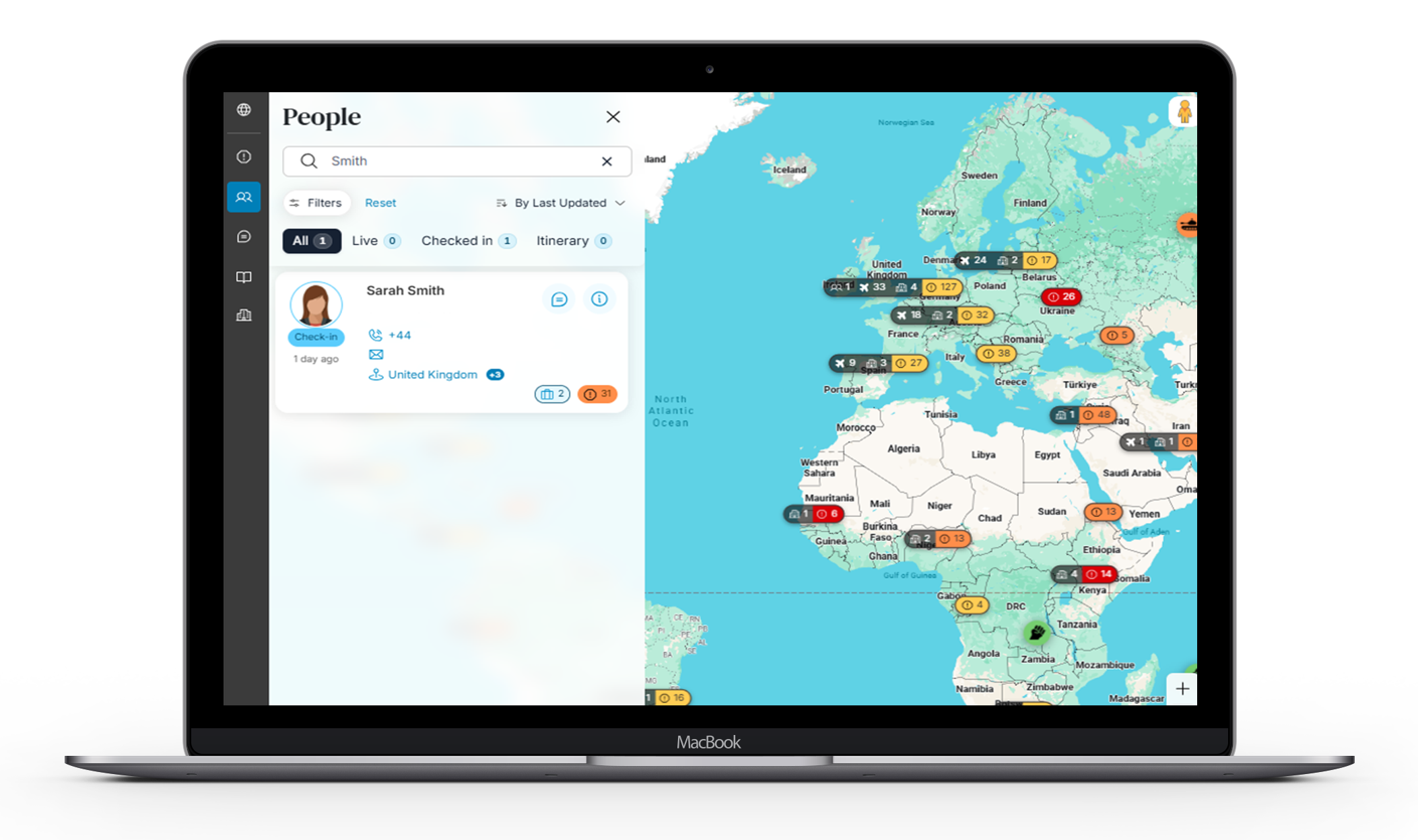
People
If enabled, your Live Location will be listed here. Select the (i) icon to view the location information.
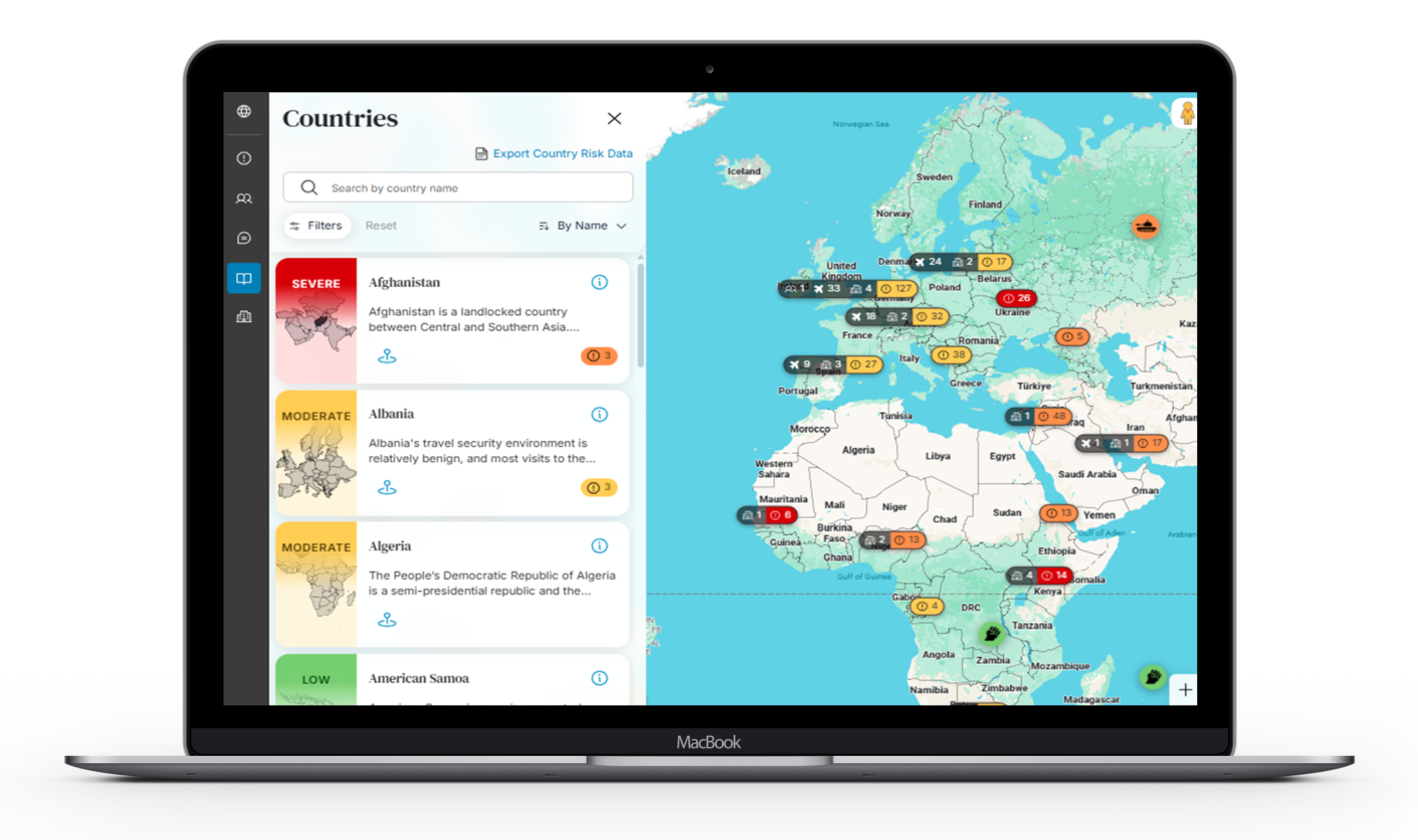
Country and City Reports, and Risk Table Export
Select a country from the panel and click "Full Report" and the country summary shown. The country report will open in a separate tab. View the breakdown of each country by risk category to understand its overall risk level. By default, countries are listed alphabetically, but you can also use the search bar to quickly find a specific country. There are also a number of City Reports available within the platform. Choose your desired country and select "Choose a City" to see if a city report is available. There is also a link "Export Country Risk Data" to view the full list of countries and their associated risk ratings in a spreadsheet format.
Administration Area
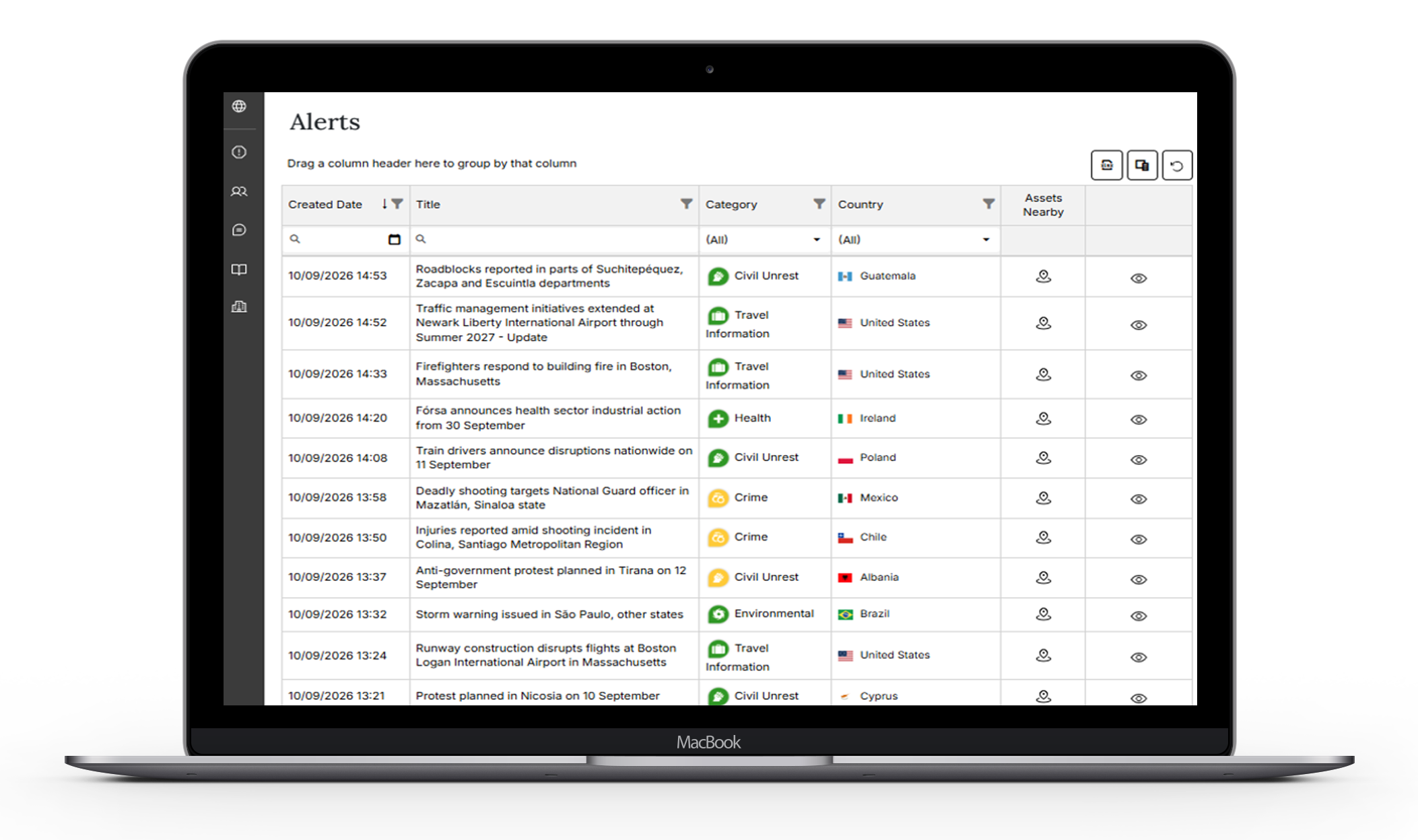
Alerts
In the Administration area, you can modify the alert date range and filter alerts by country. Click the eye icon to open an alert and view its full details.
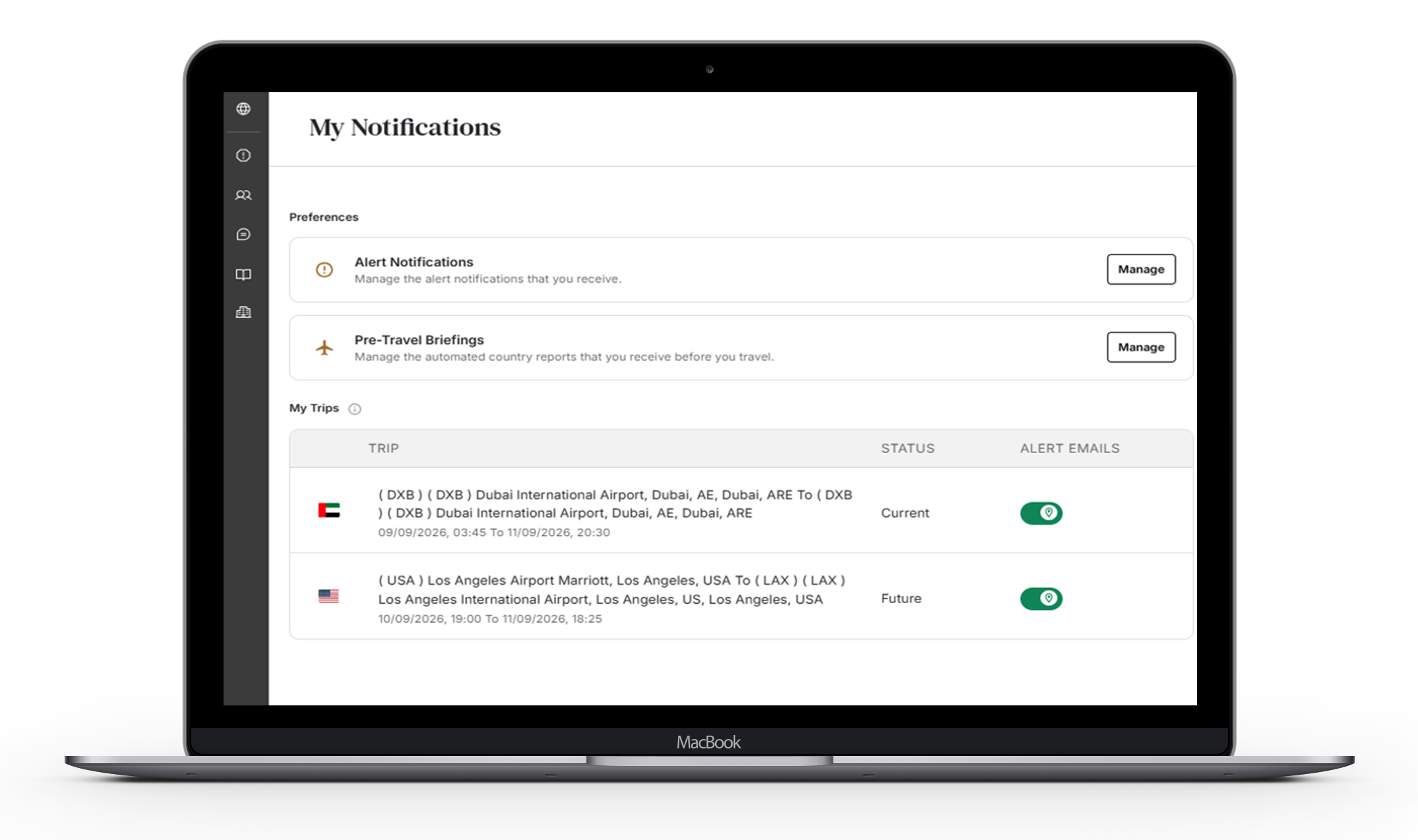
My Notifications
Select your personal notification preferences for alert notifications and pre-travel briefings.
About
Find details about open-source licenses, privacy and data protection policies in this section.