.png?width=300&height=65&name=GG%20Logo%20Main%20Navy%20(1).png)
The Itineraries section in the admin area provides a cleaner, more intuitive way to manage travel bookings at scale. Choose from individual, table, or Gantt views, use improved filters to quickly find itineraries, and take quick actions such as duplicating or associating itineraries. Easier manual entry flows, flight information integrations, and a more supportive bulk facility import experience help make adding and updating bookings faster. You can also store notes against itineraries for additional trip context and export itinerary data when needed.
Travel itineraries are now grouped into three statuses:
 |
Completed: The full itinerary or stage of a booking has occurred in the past |
 |
In Progress: The itinerary stage is currently active due to the current date and time |
 |
Scheduled: The itinerary is scheduled to occur in the future |
Itineraries in Map View
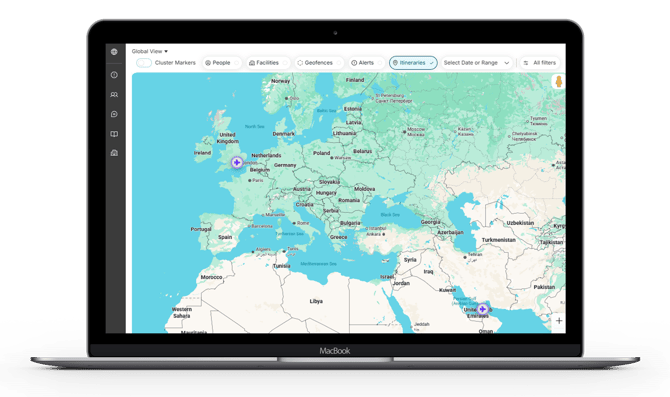
In Map View, selecting “Itineraries” from the top filter bar displays itinerary markers at each arrival and departure point based on the traveler's booking. Markers update dynamically according to the type of travel or accommodation, making it easy to identify each stage of the itinerary at a glance. For example, a plane icon represents a flight, while a bed icon represents a hotel stay.
Map markers also follow the status design used throughout the platform, allowing you to quickly identify whether a journey stage is Completed, In Progress, or Scheduled.
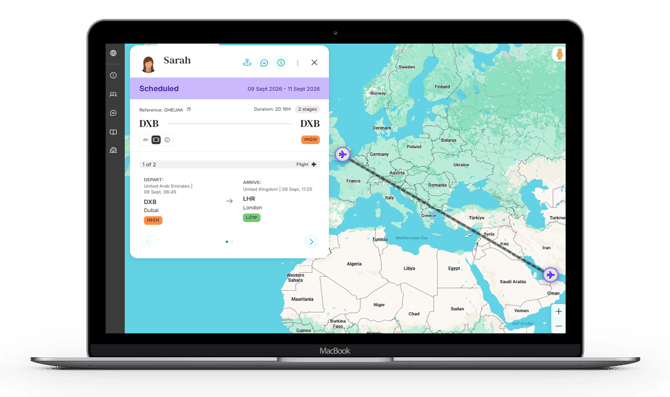
Clicking a map marker opens a pop-up card containing details of that stage of the itinerary. From the card, you can navigate between the different stages of the trip, switch to Timeline View, or view the details associated with the itinerary information. Quick links are also available to access the traveler's full user profile when required.
Itineraries in the Admin Area
To navigate to Itineraries, click the “Admin” icon in the top left corner of the side panel, and select "Itineraries" located in the "Tracking & Travel" section.
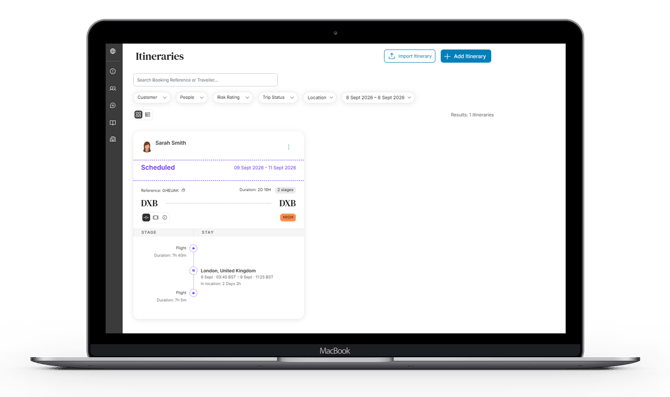
Landing Page and Search Options
The landing page defaults to the individual traveler card view. In this view, each booking is displayed by traveler, providing full details for every stage of their journey.
Refine Your Search
Use the filters at the top of the page to refine the information displayed. You can filter bookings by:
- Customers
- People
- Risk Rating of the travel destination
- Trip Status
- Location
- Date Range
Quick Search
The search bar allows you to quickly locate specific traveler or booking information. You can search using:
- Traveler name
- Email address
- Booking reference
- Flight number
These search options provide a quick way to access the specific travel booking you need.
Table View
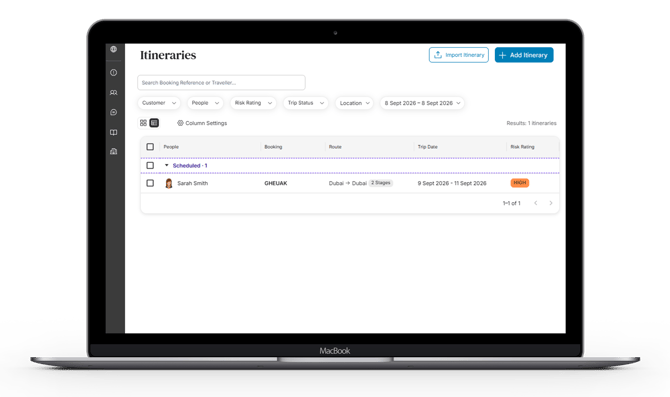
When working with larger volumes of travel data, you can switch to Table View by clicking the icon in the top-left corner for a more streamlined overview. Travel bookings are automatically grouped into three status categories: Completed, In Progress, and Scheduled.
Gantt View
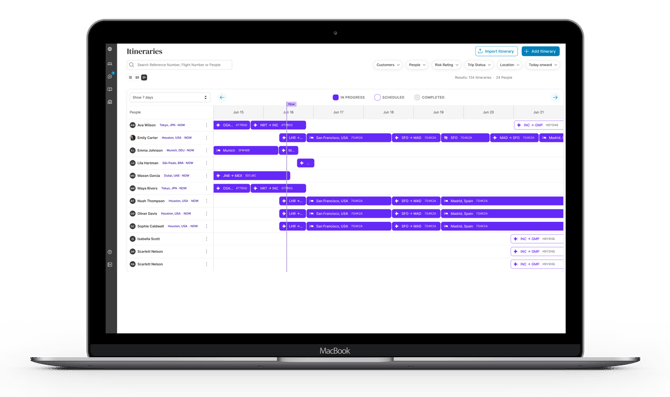
The Gantt view enables administrators to see travel grouped by user. Each user’s associated travel bookings are displayed on a timeline, which you can navigate forwards or backwards in time. Select a travel segment to open the detailed itinerary view.
Export Itineraries
You can export itineraries by selecting “Export” and choosing the bookings you want to include. Then select “Export” again, or select “Select All” to include all bookings and then “Export.” A pop-up window will display additional columns that you can add to or remove from the export. Select “Preview” to review the export before selecting “Download.”