.png?width=300&height=65&name=GG%20Logo%20Main%20Navy%20(1).png)
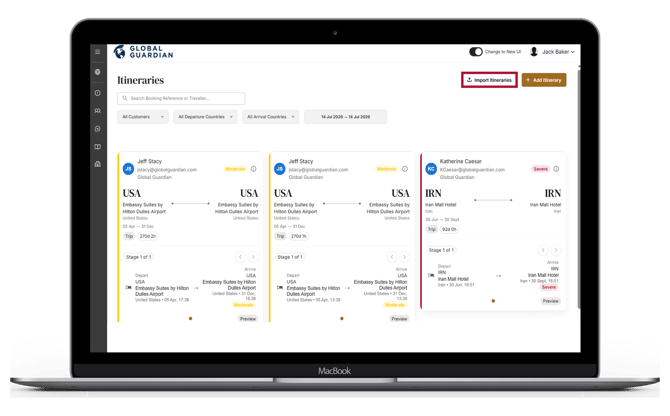
- In the Admin Panel, click on "Itineraries."
- Click on "Import Itineraries" button.
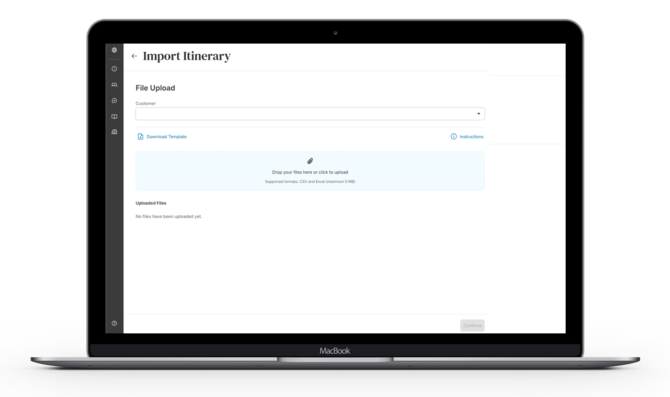
- Review the list of accepted import templates by clicking "Instructions" on the left hand side, or click "Download Template" to access the master template version, then :
- Copy or complete the required template in Excel.
- Enter the travel booking fields in the same order shown.
- Follow the formatting examples in the templates exactly.
- E.g. Departure date is YYYYMMDD and Departure time is HHMM
- Save the completed template as a CSV file.
- Click to upload the CSV file or drag and drop into the upload area.
-
- Green: Import was successful.
- Amber: A row in the file requires review.
- Red: Import failed and needs to be reviewed.
Error! Filename not specified. It is recommended to always check a few booking references after a successful import to ensure everything has been imported correctly into the platform.
Red Import Fail:
- There may be an obvious formatting error in the import file. The system may identify which cell/field is reporting the error. Review the import file and check for any instances where the format may be incorrect.
- If the cause of the failed import is unclear, contact the support team and send them the travel booking securely. The original file is required to diagnose the problem.