
Create a Geofence Alert Rule
- From the Administrator Panel, open "Platform Notifications."
- Find "Geofence Alerts" under "Admin Notifications."
- Click "+ New Rule."
- Enter a Rule Name. Optionally enter a description and a Start and End date and time if this rule requires a time limitation. Then click "Next."
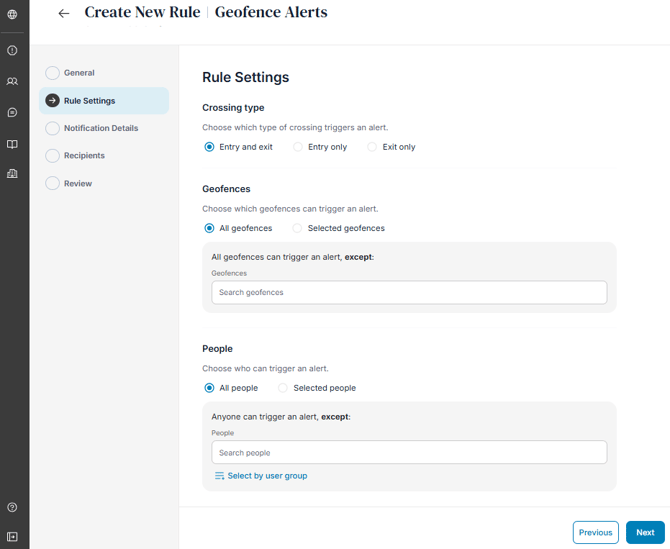
Configure the Rule Settings
Crossing Type: Select which activity should trigger an alert when monitored people cross a geofence.
- Entry and exit: Notify when a user enters or leaves a geofence.
- Entry only: Notify only when a user enters a geofence.
- Exit only: Notify only when a user leaves a geofence.
Select Geofences: Choose whether the rule applies to:
- All geofences
- Selected geofences
Monitored People: Choose whether the rule applies to:
- All people, or
- Specific people
Click "Next".
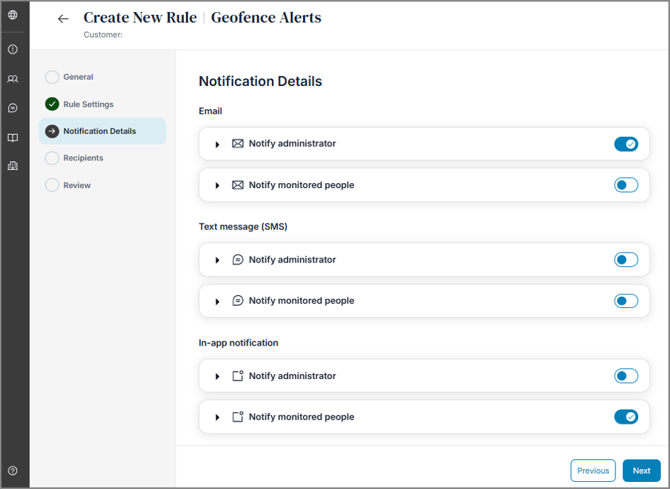
Configure Notification Details
- Choose which notification methods to enable for administrators or users by:
- SMS
- In-app Notifications
-
- Click "Next."
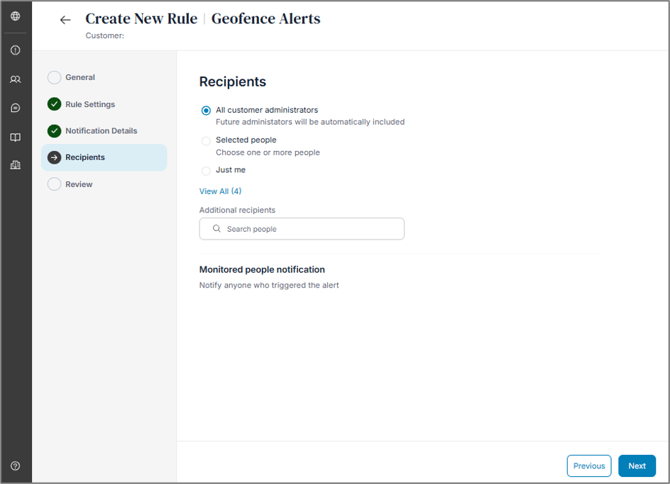
Select Notification Recipients
Choose who should receive the alerts:
- All customer administrators: Future administrators will be automatically included
- Selected People: Choose one or more people
- Just Me
Click "Next."
Review and Save
- Review the rule settings to ensure they are correct.
- Click "Save" to create the alert rule.