.png?width=300&height=65&name=GG%20Logo%20Main%20Navy%20(1).png)
Administrators can customize country reports which are accessible in the platform in a few ways. These include adding a custom country risk level, adding additional content to a country report, or re-ordering/removing sections of a country report.
- Custom Risk Rating
- Custom Content (reorder/delete sections)
- Add Custom Text Content
- Customize Pre-Travel Briefings
- Preview Country or City Report Changes
In order to customize a country report, the user must have the user role permissions of Customer Administrator
When customizing a country report, this will update the country report for all users under your customer.
Custom Risk Ratings
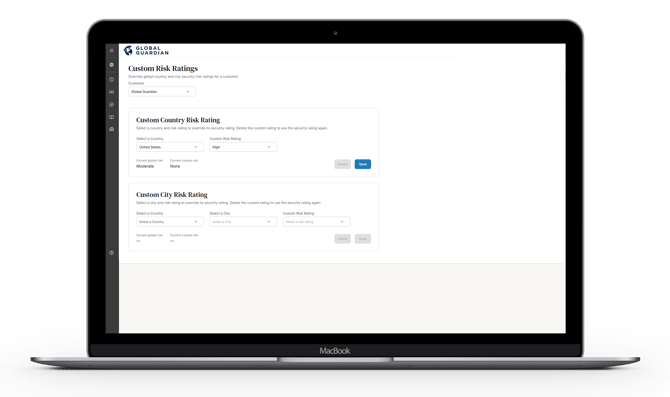
An administrator is able to override the overall country risk rating in the platform, to do so you must:
-
Navigate to the Admin Panel.
-
Under Administration, click "Custom Risk Ratings."
-
Under the "Custom Country Risk Ratings tab, select the country from the drop-down list.
-
Next select the security risk level you wish to change it to from the "Custom Risk Rating" drop-down.
-
Click "Save."
Once saved, you will see as an administrator the current global risk rating and the current custom risk rating.
Custom Content (reorder/delete sections)
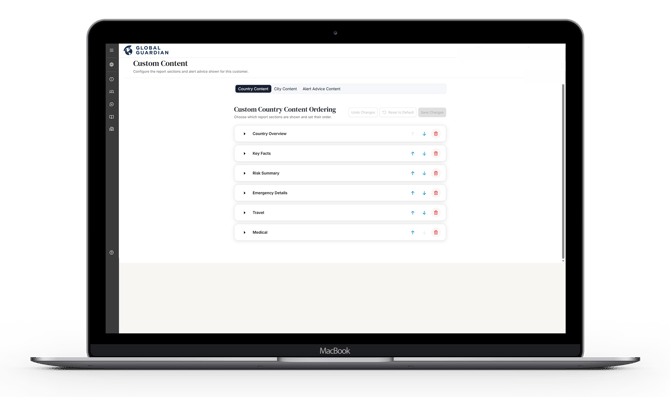
An administrator is able to re-order or remove sections of country reports in the platform. To do so, you must:
-
Navigate to the Admin Panel.
-
Under Administration, click "Custom Content."
-
Under the "Country Content" tab, the country report sections will be viewable, from which you can click the arrows to move sections of the report, or click the red delete button (trash icon) to remove sections from the report.
-
Click "Save Changes."
Once saved, you will see a summary of deleted sections and detail types for future reference.
Add Custom Text Content
Administrators have the ability to add additional content sections to a country report. This additional content can optionally be shown only when the country report is sent as a pre-travel briefing to a traveler, and/or also be shown anytime a user looks at the country report in the web or mobile app platforms.
To add custom content to a country report, you must:
-
In the Admin Panel, click on "Platform Notifications."
-
Click "Manage" on Pre-Travel Briefings.
-
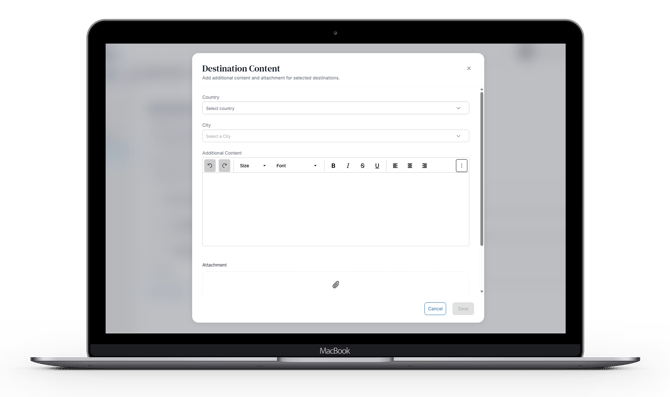
Under "Email Details," click on "Destination Content" and click "+Add."
- Search for the country and/or city and enter additional content in the text box provided and click "Save."
-
Click "Save" in the top right for the overall Pre-Travel Briefings section.
Customize Pre-Travel Briefings
Country reports can be sent to travelers automatically in advance of their travel if we have processed their travel booking in the platform. The customization options already provided above for countries and cities will be applied to these e-mail briefings, ensuring that travelers are informed not just from an overall risk point of view, but also any company specific details they should be informed of.
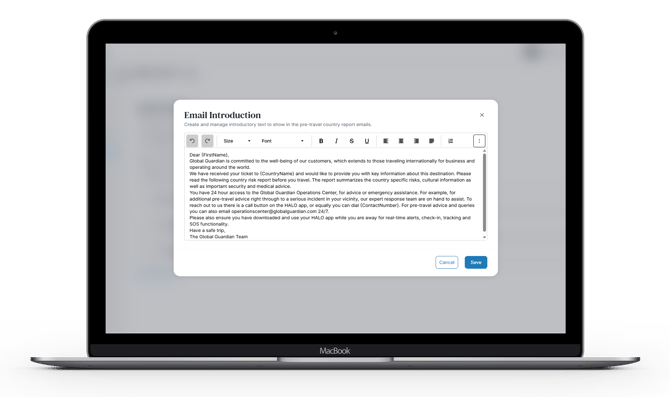
One additional option in customization for pre-travel briefing emails specifically, is the ability to customize the introduction text to the email. This can be helpful to remind the recipient of important resources or other instructions. If no custom introduction text is applied, the platform will use the default introduction.
To add a custom introduction:
-
In the Admin Panel, click on "Platform Notifications."
-
Click "Manage" on Pre-Travel Briefings.
-
Under "Email Details," click on "Email Introduction" and click "edit."
-
Edit the existing introduction text or replace with new text and click "Save."
-
Once done, click Save
Remember to save these edits for this pre-travel briefing rule.
Preview Country or City Report Changes
Customer admins can preview the changes they have made to their country reports by:
-
In the Admin Panel, click on "Platform Notifications."
-
Click "Manage" on Pre-Travel Briefings.
-
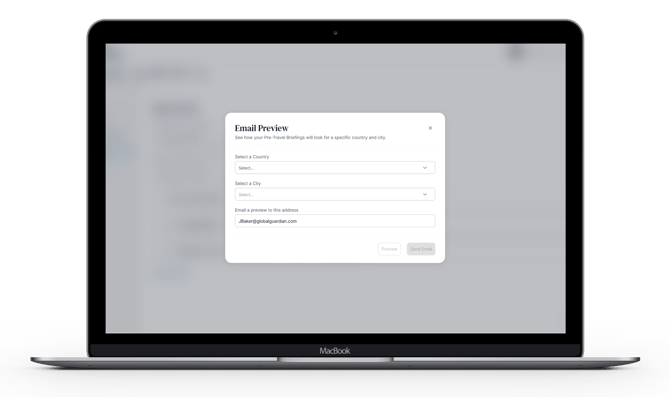
Under "Email Details," click on "Email Preview" at the bottom.
-
Select a country or city from the drop-down lists and then click "Preview."
-
Alternatively, enter an email address and click "Send Email."
You will receive the Pre-Travel Briefing to your inbox in order to view the changes in an email format.